

Overview
Gravity Forms includes built-in Personal Data Settings that allow you to automatically delete entries after a specified number of days. This guide walks you through the two primary methods for removing old data: configuring the code-free Personal Data Retention Policy in your form settings, and using custom code for advanced, programmatic control.
Automatic Deletion
The simplest way to handle data deletion is to use the Retention Policy feature, located within the Personal Data settings. This native feature handles the cleanup of both form entries and partial “Save & Continue” draft submissions automatically.
Configuring the Retention Policy
- Access Personal Data Settings.
Navigate to your form in the WordPress dashboard.
Hover over the Settings menu and select Personal Data.
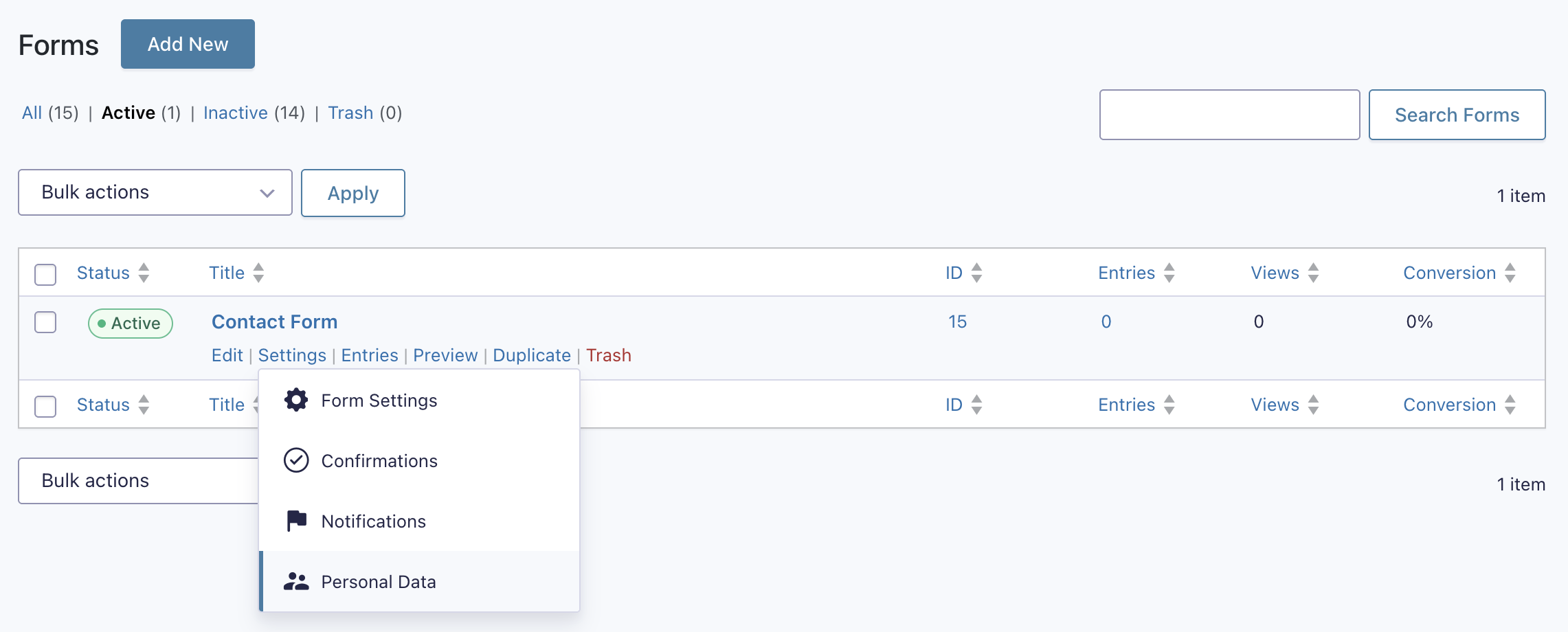
- Select a Deletion Action.
Under the Retention Policy section, choose one of the following automated actions.
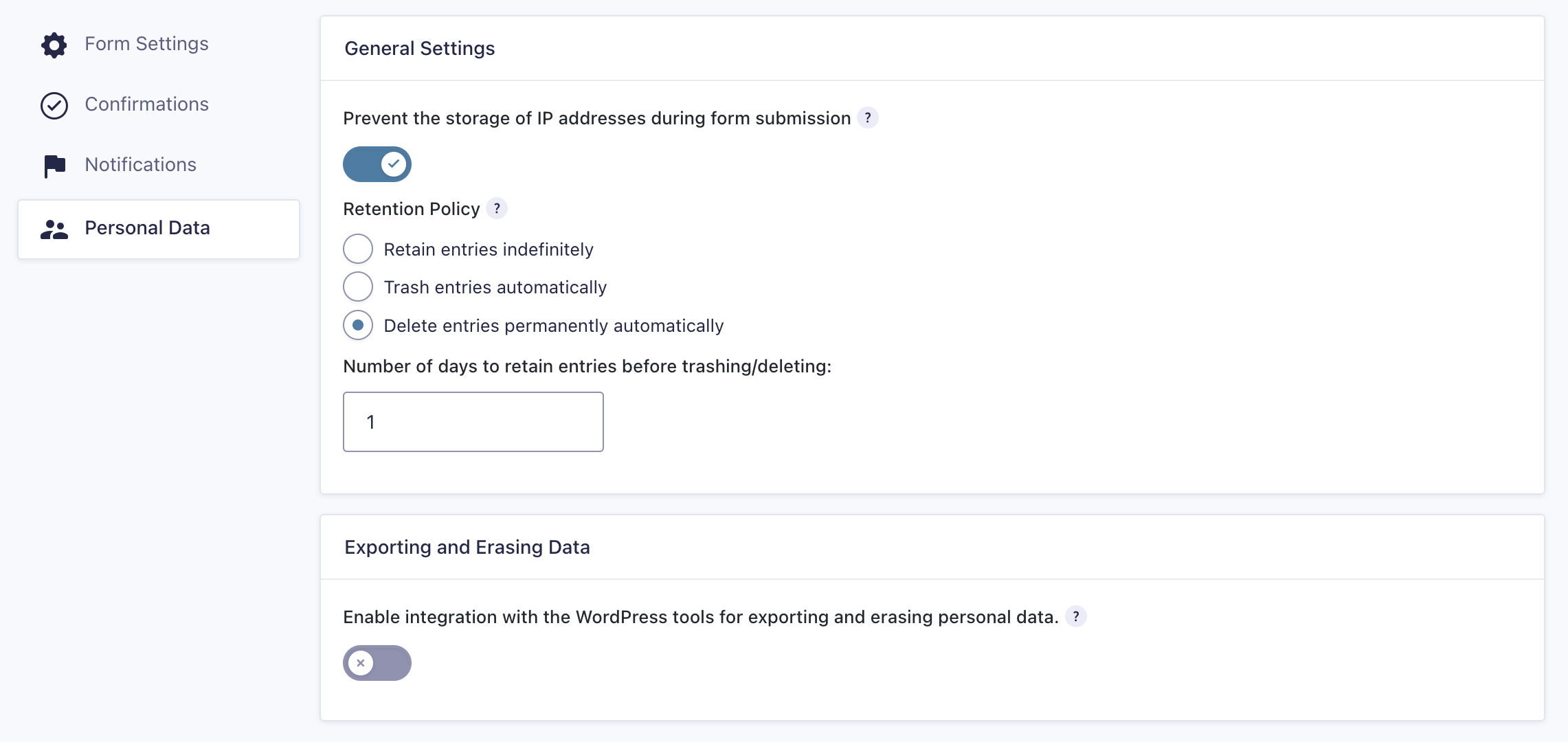
Automatically move entries to the Trash.
Moves entries to the Trash after the specified number of days. This is a safer option if you want a “soft delete” buffer before permanently removing the data.
Delete entries permanently automatically.
Permanently removes the entry and all associated files from the database and server. This action cannot be undone.
Note: The minimum number of days allowed is one. This is to ensure that all entry processing is complete before deleting/trashing. The number of days setting is a minimum, not an exact period of time.
Important Considerations
Timing & Cron Jobs
Automatic deletion is not instantaneous at the exact second an entry expires. The cleanup process runs via a daily WordPress Cron task. Depending on when your site’s cron runs, an entry might remain visible for up to 24 hours after it expires. The trashing/deleting occurs during the daily cron task, so some entries may appear to remain up to a day longer than expected.
Draft Submissions
The retention policy also applies to Draft Submissions (created when users select “Save and Continue Later”). These partial entries will be cleaned up alongside completed entries based on the days you specified.
Related Data Minimization
If your goal is to reduce stored personal data, consider enabling “Prevent the storage of IP addresses” in the same settings panel. This prevents the IP from being saved to the database in the first place, reducing the need for later deletion.
Refer to the Personal Data Settings article for more information about each setting.
Programmatic Deletion & Custom Logic
If the built-in retention settings don’t meet your specific needs (e.g., keeping specific “Starred” entries while deleting others), you can create a custom solution.
Modifying the Built-in Automatic Deletion
You can use the gform_entry_ids_automatic_deletion filter to modify the list of entries Gravity Forms is about to delete during its daily cron task. This is effectively a “Rescue” filter, allowing you to save specific entries from deletion.
Rescue “Starred” entries from deletion
In this example, we loop through the IDs scheduled for deletion. We rebuild the list to include only the entries that are NOT starred.
add_filter( 'gform_entry_ids_automatic_deletion', 'filter_rescue_starred_entries' );
function filter_rescue_starred_entries( $entry_ids ) {
    $ids_to_delete = array();

    foreach ( $entry_ids as $entry_id ) {
        // Get the entry object
        $entry = GFAPI::get_entry( $entry_id );

        if ( is_wp_error( $entry ) ) {
            continue;
        }

        // Logic: If the entry is Starred, we skip adding it to the $ids_to_delete array.
        // If it is NOT starred, we add it to the list to be deleted.
        if ( ! $entry['is_starred'] ) {
            $ids_to_delete[] = $entry_id;
        } else {
            GFCommon::log_debug( 'Rescuing Starred Entry ID: ' . $entry_id );
        }
    }

    return $ids_to_delete;
}
Controlling File Deletion
By default, when an entry is permanently deleted, the associated files are also deleted from the server. To change this behavior (e.g., to keep files on the server even if the entry is gone), use the gform_field_types_delete_files filter.
Prevent file deletion for all forms.
Returning an empty array tells Gravity Forms that no field types are authorized for file deletion.
add_filter( 'gform_field_types_delete_files', '__return_empty_array' );
Deleting Entries on Demand
For custom workflows, delete an entry immediately after a specific event using the GFAPI::delete_entry() method.
Delete an entry immediately.
$entry_id = 123;
$result = GFAPI::delete_entry( $entry_id );

if ( is_wp_error( $result ) ) {
    GFCommon::log_debug( 'Deletion failed: ' . $result->get_error_message() );
} else {
    GFCommon::log_debug( 'Entry ' . $entry_id . ' deleted successfully.' );
}