

Introduction
The Gravity API (gravityapi.com) is the service your website connects to for licensing, updates, and some add-on connections. The connections to the Gravity API can be rate-limited. If a site, or a group of sites sharing the same IP address, sends too many requests in a short time, further requests from that IP address are temporarily blocked.
This article explains which features use the Gravity API, how to recognize a block, and what to do about it.
What Connects to the Gravity API
- Registering and validating your Gravity Forms license key.
- Checking for and downloading updates for Gravity Forms and official add-ons.
- Connecting some official add-ons to their services, for example Stripe, PayPal Checkout, Square, HubSpot, Salesforce, Dropbox, Slack, Trello and Zoho CRM.
- License validation and update checks for Gravity SMTP.
Gravity Forms caches license and version information for up to a day, so a site working normally makes only a few requests. Rate limiting usually comes from many requests in a short period, or from many sites sharing one IP address.
How To Recognize a Block
You might see this message:
Your IP address has been temporarily blocked for exceeding our API rate limits. Please try again in a few minutes. If the issue persists, contact support.
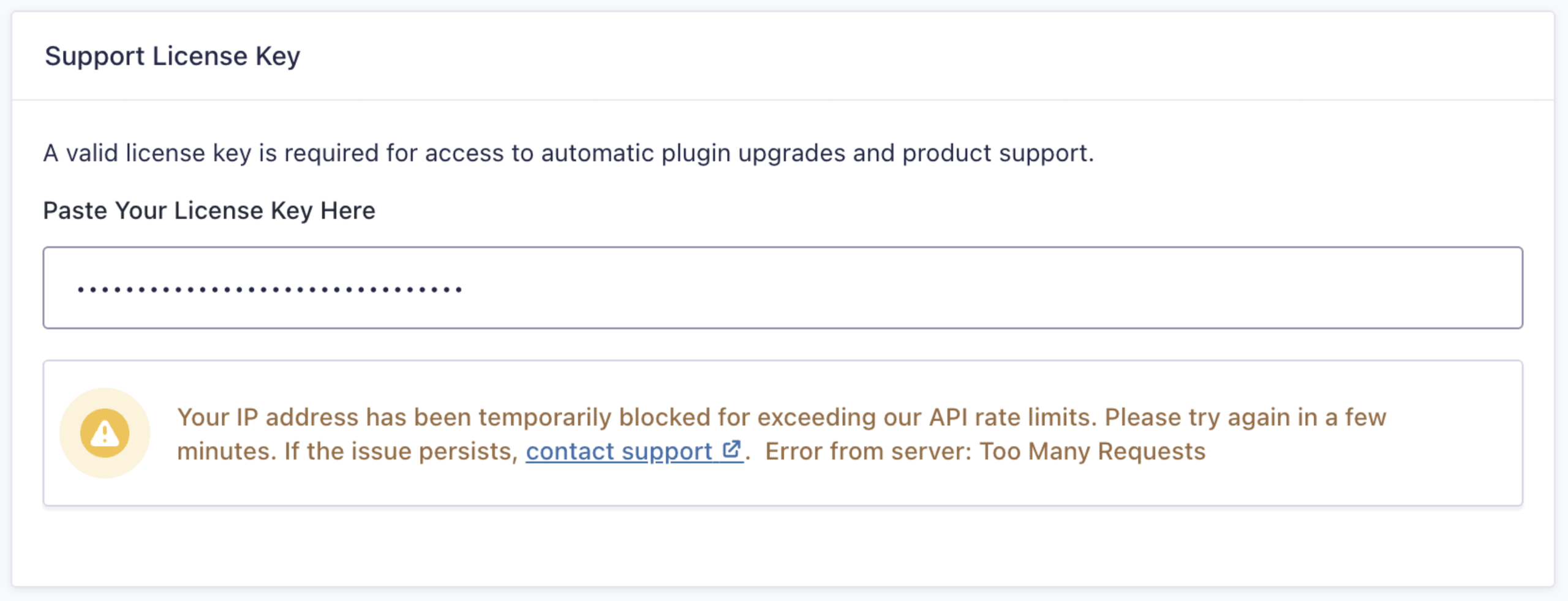
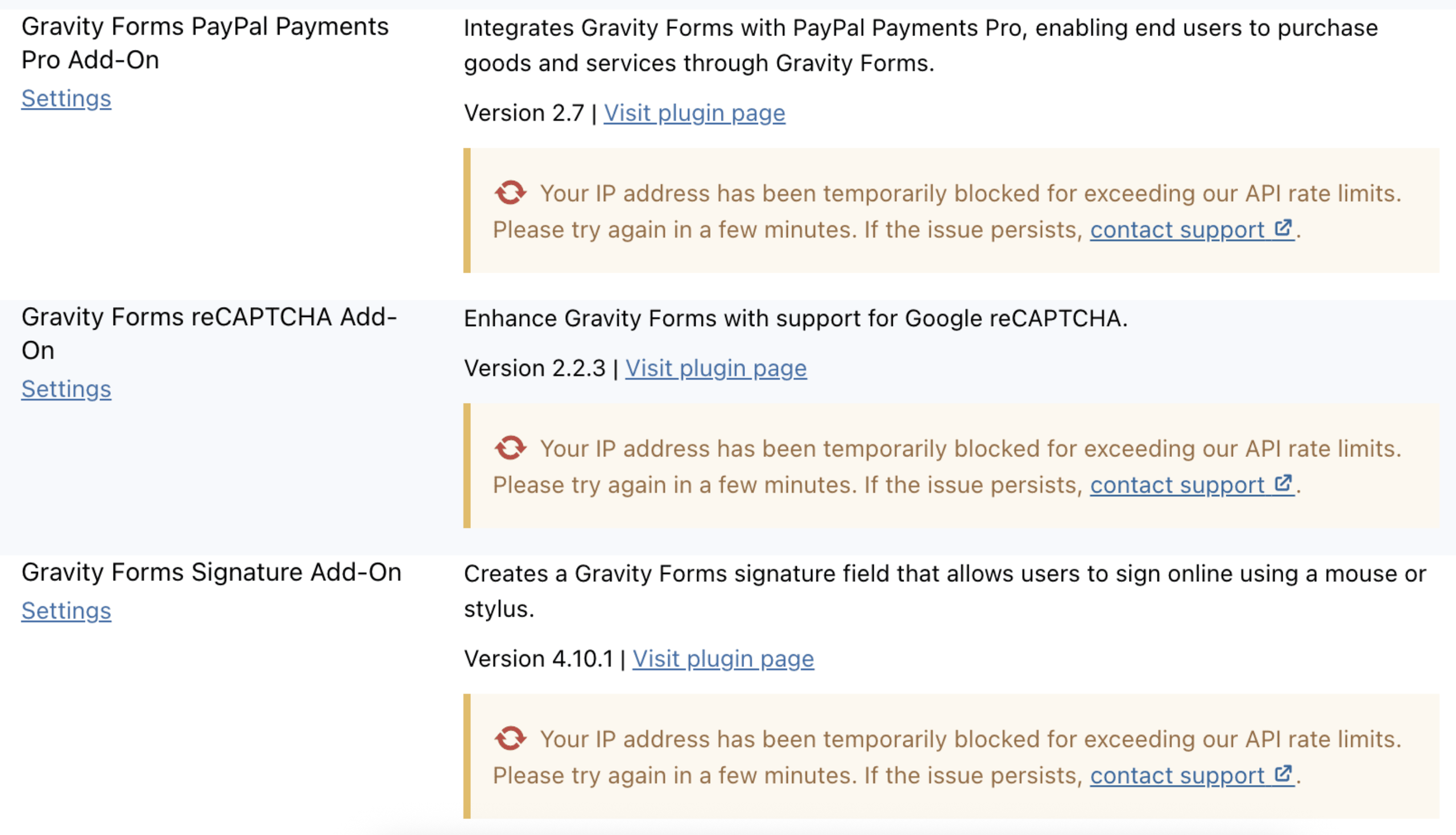
Other features may fail at the same time, for example, update checks or add-on connections. In the Gravity Forms Core log, blocked requests show as errors from the server with a 429 Too Many Requests response.
2026-11-16 5:30:54.317657 - DEBUG --> Gravity_Api::check_license(): error getting site and license information. Error from server: Too Many Requests
Common Causes
Shared IP addresses.
On shared hosting or behind a proxy, many websites can access the Gravity API from the same IP address, and their requests are counted together.
Bulk activations.
Activating or checking licenses on many sites at once, for example with a WP-CLI script or a site management tool.
Repeated attempts.
Saving the license key, reconnecting an add-on repeatedly, or forcing update checks repeatedly.
Plugins or scripts that clear cached data.
Tools that frequently clear transients or force update checks cause Gravity Forms to request the Gravity API again each time.
Blocked networks.
Requests from anonymizing networks or from IP addresses flagged as malicious may be blocked.
What To Do
- Wait a few minutes and try again. Blocks are temporary. Retrying while blocked doesn’t help.
- Refresh the license status. Gravity Forms remembers the last license check for up to a day, so the blocked message can stay on screen after the block has ended. Go to Forms → Settings and click Save Settings.
- Spread out bulk work. If you manage many sites, activate licenses and run updates in smaller batches, with a pause between them.
- Check with your host. Ask whether your site shares an outgoing IP address with other sites, and whether a dedicated IP is available.
- Check outgoing connections. Make sure your server can make HTTPS requests to
gravityapi.com. If it can’t connect at all, see Troubleshooting license key validation errors. - Contact support. If the block persists, enable logging for Gravity Forms Core, try once more, and open a support ticket with your site URL, your server’s public IP address, the approximate time of the error, and your System Status report.