Overview
This quick reference guide lists all Notifications settings and briefly describes their purposes.
Settings Reference
| Setting | Description |
|---|---|
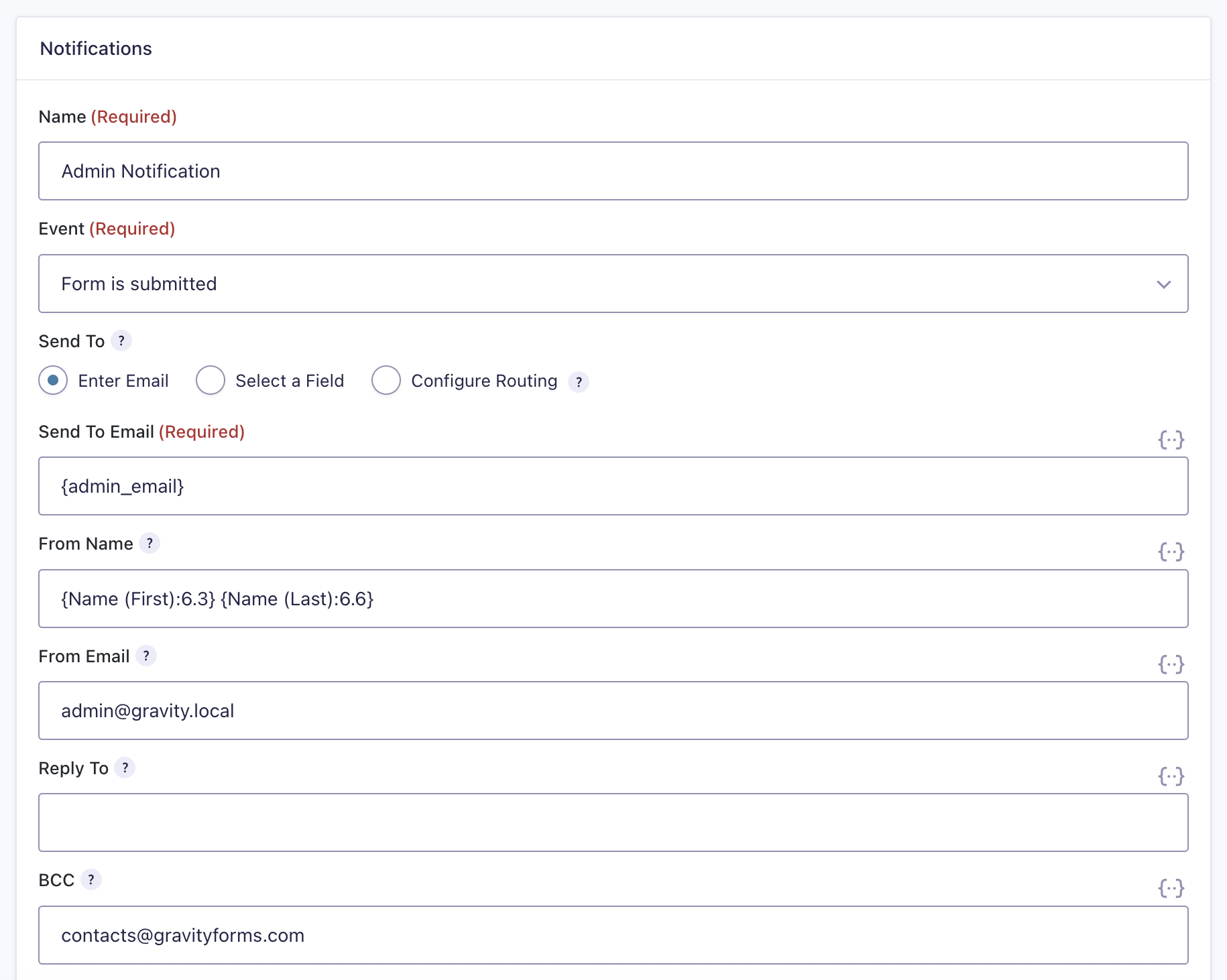
| Name | A unique name to identify the Notification. It is not displayed to the user. |
| Event | Select when the notification should be triggered. If the event that originally configured this notification is no longer active, it will still display here, so you’re aware the notification may not be triggering. Refer to the Gravity Forms Notification Events article for more information. |
| Send To | The email address you would like the notification email sent to. – Enter Email. Allows notifications to be sent to a static email address. – Select a field. Allows notifications to be sent to an email address included in the form. – Configure Routing. Allows notifications to be sent to different email addresses depending on values selected in the form. |
| Send To Email | The static email address to which notifications will be sent. |
| From Name | The name you would like the notification email sent from, or select the name from available name fields. |
| From Email | An authorized email address you would like the notification email sent from. To avoid deliverability issues, always use your site domain in the from email. |
| Reply To | The email address you would like to be used as the reply to address for the notification email. |
| BCC | The email address you would like to be used as the reply to address for the notification email. |
| Setting | Description |
|---|---|
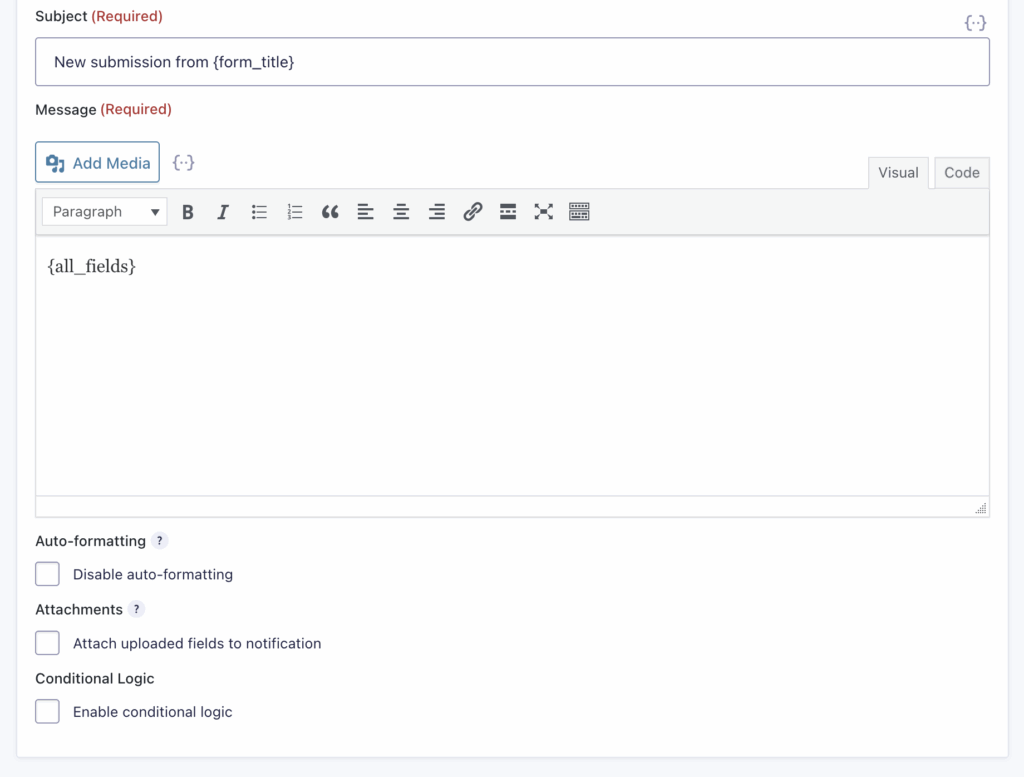
| Subject | The email subject. |
| Message | The email message. Supports Visual or HTML editing. |
| Auto-formatting | When enabled, auto-formatting will insert paragraph breaks automatically. Disable auto-formatting when using HTML to create email notification content. |
| Attachments | When enabled, any files uploaded to File Upload fields will be attached to the notification email. |
| Conditional Logic | When enabled, Conditional Logic settings will be displayed. Refer to this article for more information. |
Merge Tags Support
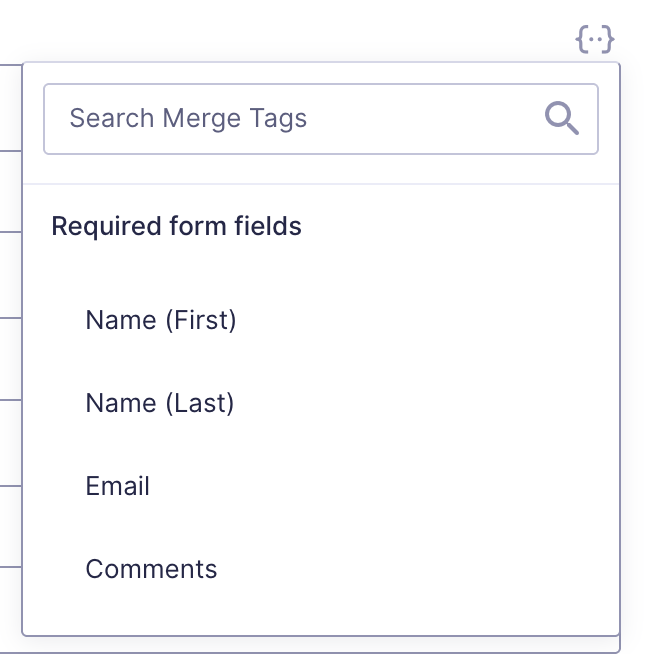
Settings where merge tags are supported will display the {..} icon.