

Overview
This article explains how to connect your AI assistant to Gravity Forms by enabling the MCP in WordPress, creating an Application Password, and configuring your AI client.
Prerequisites
WordPress 6.9 or higher with Gravity Forms installed and active.
Enable the Gravity Forms MCP
- In WordPress, go to Forms → Settings → MCP.
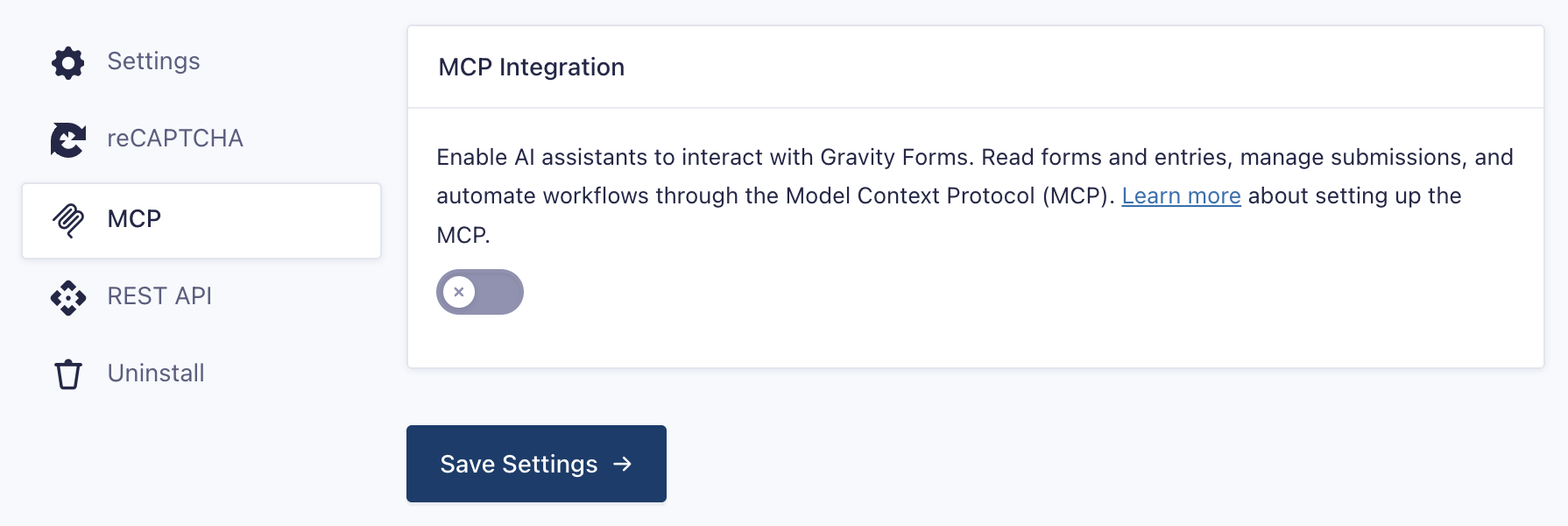
- Switch the toggle and save.
Create an Application Password
- In WordPress, go to Users → Profile → Application Passwords.
- Enter a recognizable name (e.g., “Claude MCP” or “Cursor MCP”).
- Click Add New Application Password.
- Copy the generated password. It is shown only once. Save it somewhere safe.
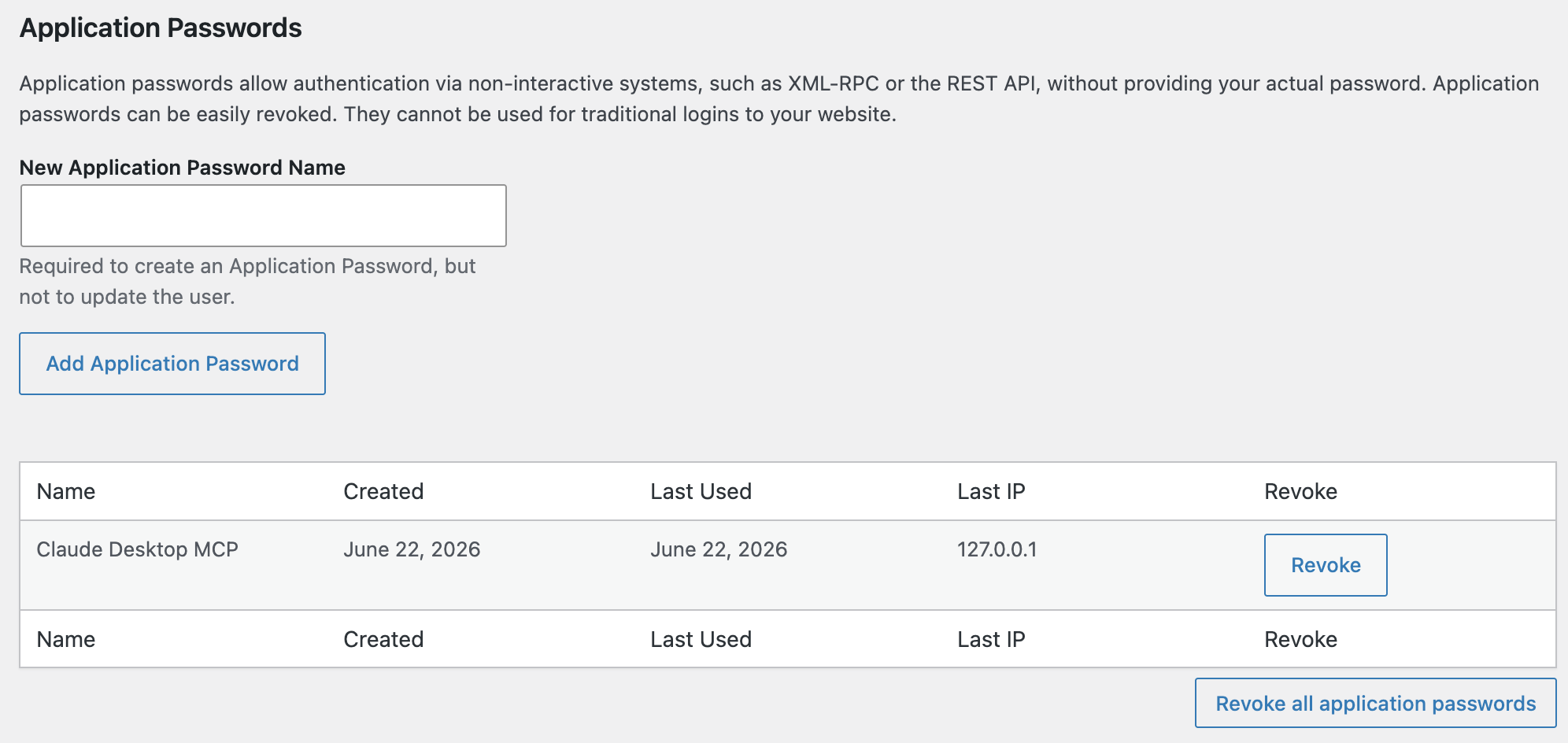
Note: Generate the Application Password from a dedicated user account with only the capabilities the MCP Server needs. Refer to Creating a User for MCP Access for more information.
Claude Desktop Setup
- Download and install Claude Desktop.
- Go to Settings → Developer.
- Click Edit Config next to “Local MCP servers”.
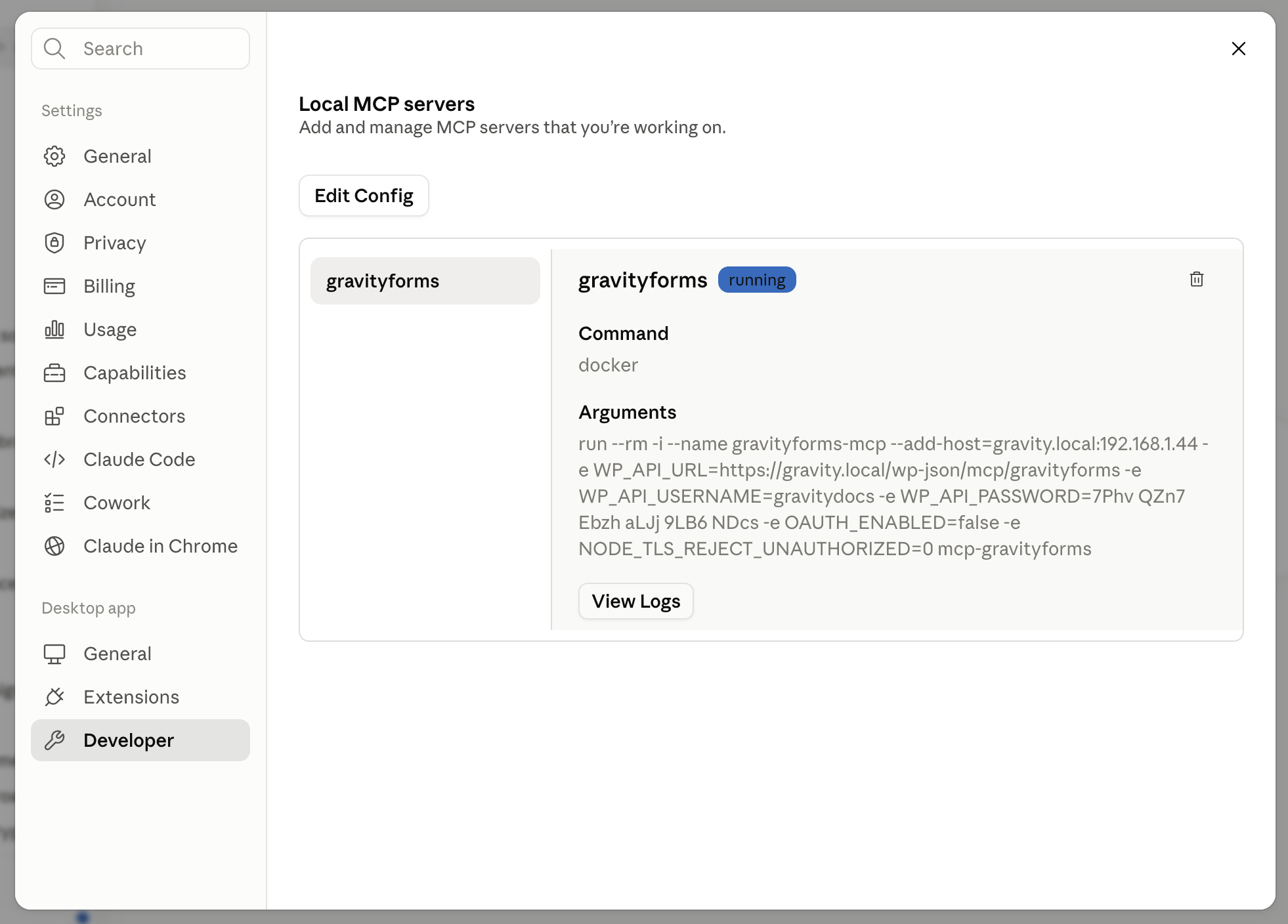
- Add the following configuration, replacing the values for “yoursite.com”, “your-username” and “your-api-password” with your own values:
{
    "mcpServers": {
        "gravityforms": {
            "command": "npx",
            "args": [
                "-y",
                "@automattic/mcp-wordpress-remote"
            ],
            "env": {
                "WP_API_URL": "https://yoursite.com/wp-json/mcp/gravityforms",
                "WP_API_USERNAME": "your-username",
                "WP_API_PASSWORD": "your-api-password",
                "OAUTH_ENABLED": "false"
            }
        }
    }
}
- Save the file.
- Quit and restart Claude Desktop.
Refer to the Claude official documentation for more information.
Other AI Clients
Most MCP-compatible AI clients use a JSON configuration file. Use the same configuration format as Claude Desktop above, adapting the file location to match your client:
- Cursor: Add to
~/.cursor/mcp.jsonor per-project.cursor/mcp.json - Claude Code: Add to
.mcp.jsonin your project directory or~/.claude/mcp.jsonglobally - VS Code: Add to
.vscode/mcp.jsonin your project workspace - ChatGPT Business: ChatGPT is a cloud client, not a local one. It requires a dedicated endpoint and its own authentication setup. Refer to the Connecting ChatGPT Business to your Gravity Forms MCP article for more information.
- Other clients: Refer to your client’s MCP setup documentation for the configuration file location
Replace the same values (URL, username, password) for your site and user.
Testing Your Connection
Verify Tools Are Available
Start a new chat with your AI assistant and ask it to list available tools.
Try a Simple Prompt
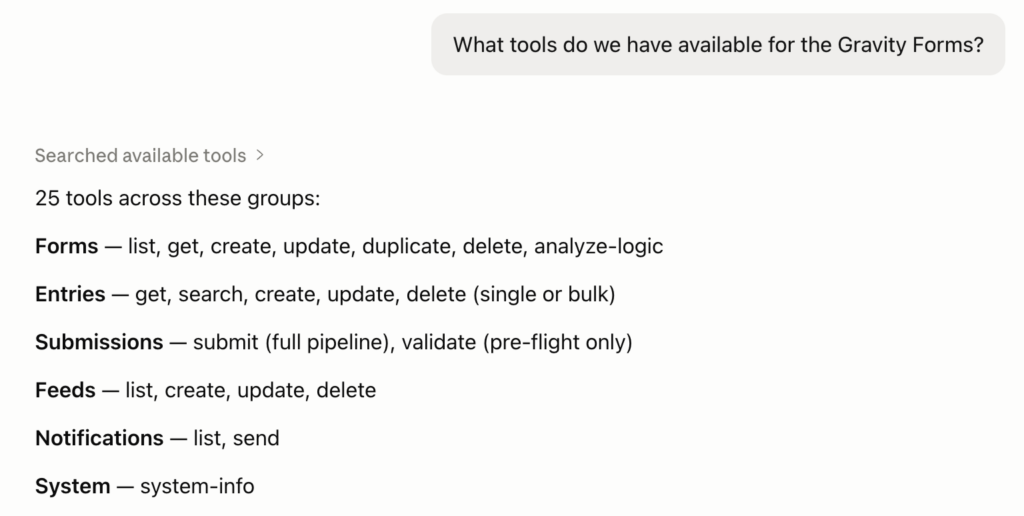
Test the connection with a read-only operation:
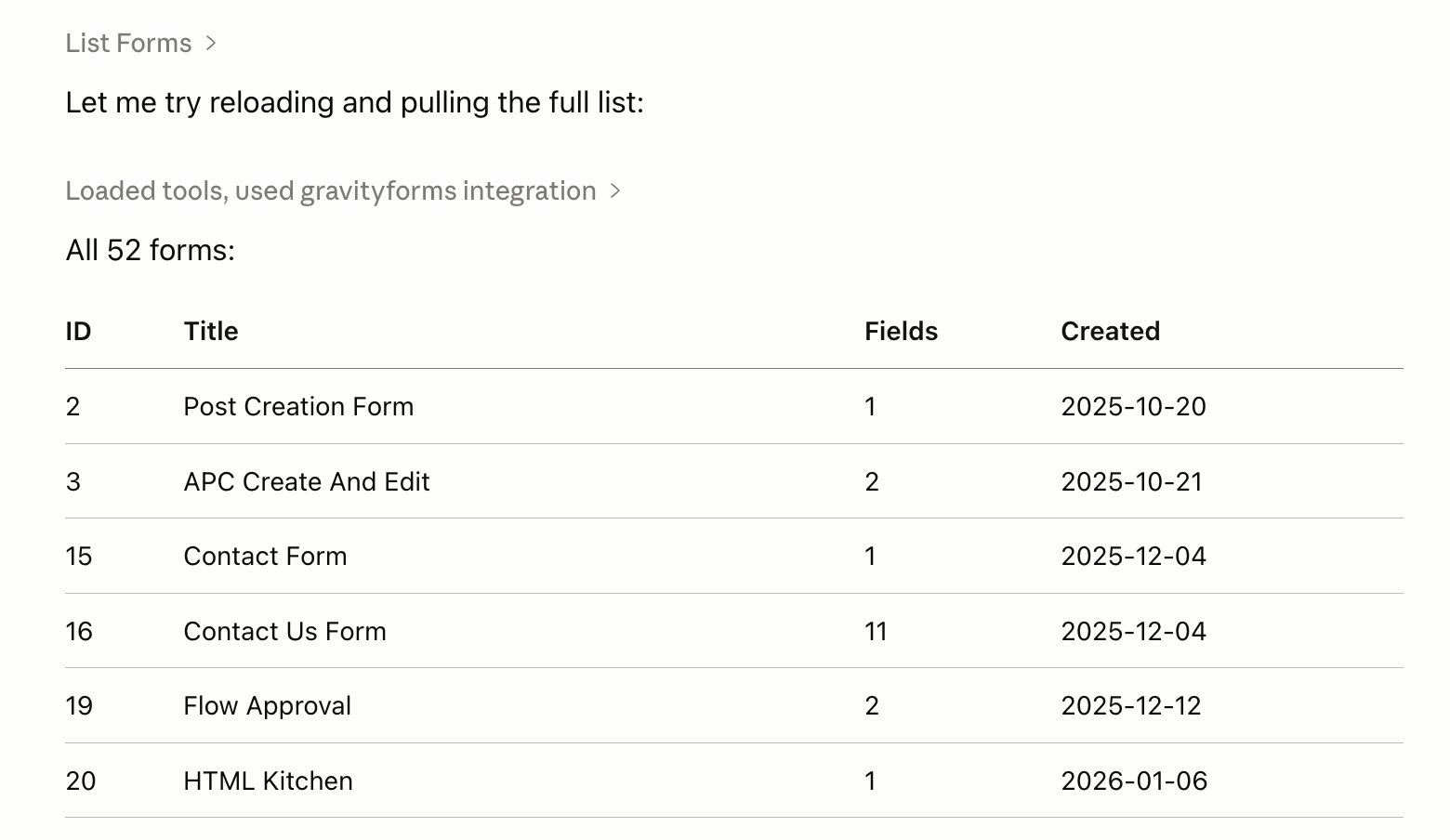
- “List all my forms”
- “How many submissions does form 1 have?”
- “Get the details of form 2”
If the assistant responds with data from your site, the connection is working.
Troubleshooting
| Symptom | Likely Cause | Fix |
|---|---|---|
| 401 / Authorization failed | Wrong or missing Application Password or username | Recreate the Application Password in WordPress; verify WP_API_USERNAME and WP_API_PASSWORD in your config |
| The tool isn’t listed / “unknown tool” | The tool is disabled in the MCP settings, or the master switch is off | Go to Forms → Settings → MCP and enable the master switch and the tool you want |
| “Permission denied” when running a tool | The WordPress user lacks the required capability | Use a user/role with the appropriate Gravity Forms capability for that tool |
| MCP settings show “unavailable” | WordPress is older than 6.9 | Update WordPress to 6.9 or higher |
| The config file won’t save | Invalid JSON syntax | Check your JSON formatting (commas, quotes, brackets) using a JSON validator |
| Client won’t recognize the MCP server | Config file not saved or client not restarted | Save your config file and fully restart your AI client (don’t just close the window) |
| “No actions are available for this app.” (ChatGPT) | ChatGPT scanned tools/list without WordPress Basic auth, or sent only the Application Password | Put username:application-password in the Access token field, scheme Basic, then Refresh. Do not raise the user to Administrator. |
| Draft creates, Enable goes to publish review with no login prompt (ChatGPT) | ChatGPT does not collect WordPress credentials at Enable time | Credentials must be entered on the create form before the tool scan. |
| ChatGPT cannot reach the server | Cloud client calling a private URL | Use a public HTTPS URL. Localhost and LAN URLs will not work. |
| Used the Claude Desktop JSON / npx config in ChatGPT | Wrong client type | Point ChatGPT at /wp-json/mcp/gravityforms directly. Do not use @automattic/mcp-wordpress-remote. |
| OAuth selected in ChatGPT, connection never lists tools | Gravity Forms 3.1 has no MCP OAuth | Use Access token / API key + Basic, or a local stdio client. |
| Some checked tools missing from ChatGPT Actions | User lacks that tool’s capability | See the capability map. Count Entries and List Entry Notes need entry-note/view-entries caps; form tools need gravityforms_edit_forms. |
| App exists but ChatGPT does not call it | App not enabled for the conversation | Enable Developer mode in the chat and select the app. |
If you need further assistance, please contact our support team.