

Summary
To send information from your Gravity Forms form to the Brevo service, you will first need to create a feed. The feed will tell Gravity Forms which Brevo List you want to use, how you want the fields to be mapped, and under what conditions you wish for the entry to be sent to the service.
This article describes the steps to create a basic feed for the Brevo Add-On.
Create a Feed
To create a feed using the Brevo Add-On for Gravity Forms, do the following from your WordPress Admin Dashboard:
- Click on Forms in the left side menu.
- Select the form that you want to use with Brevo.
- Once within your desired form, hover over Form Settings and click on Brevo.
- Click Add New to create a new feed. You will be presented with the Brevo feed settings screen.
Feed Settings Reference
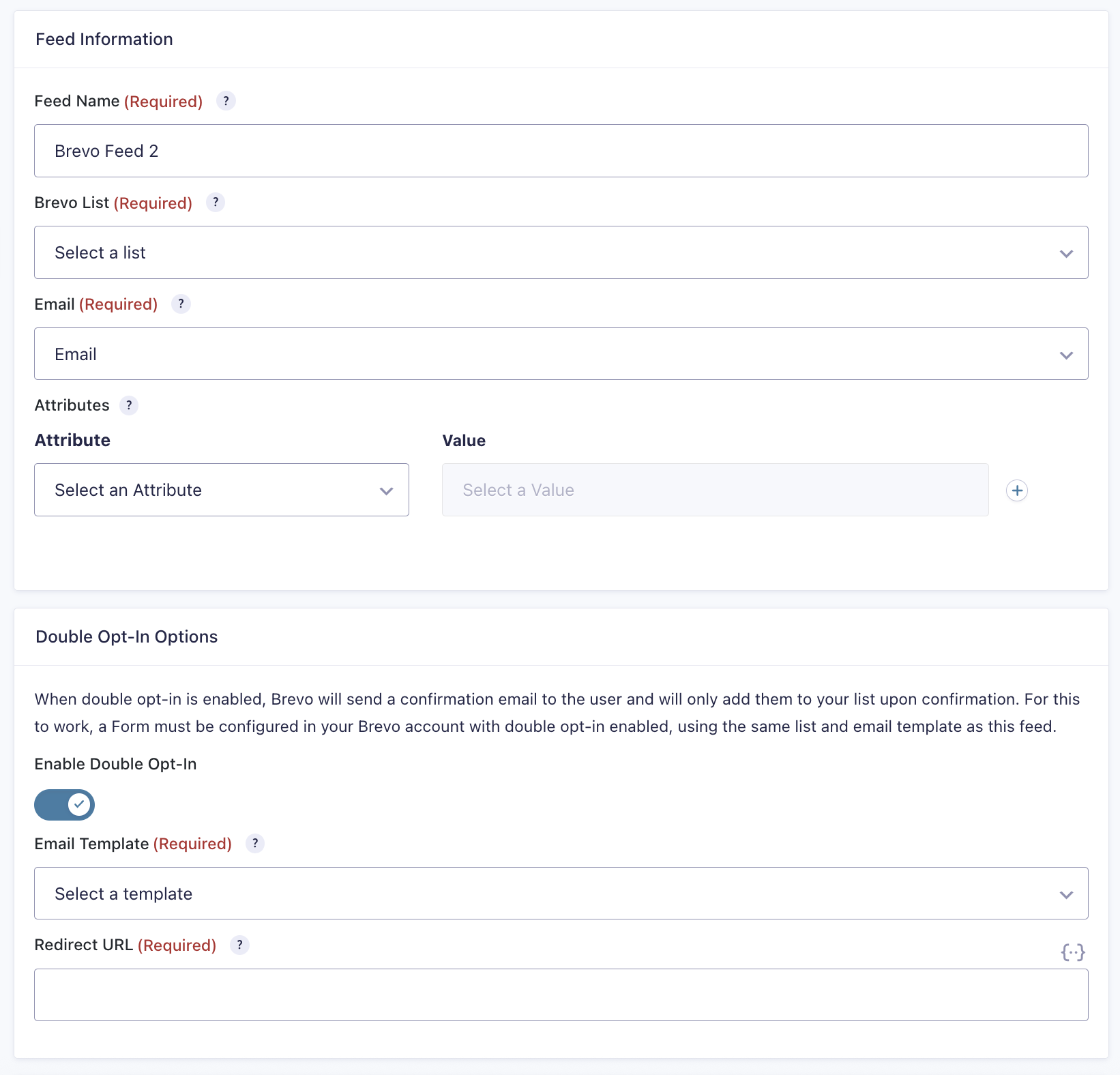
This table describes the feed settings options you will be offered for a Brevo feed. Lists, attributes, and email templates are cached for 5 minutes to reduce API requests when editing feeds.
| Setting | Description |
|---|---|
| Feed Name | Enter a feed name to identify this setup uniquely. Required. |
| Brevo List | Select the Brevo List you would like to add your contacts to. Required. |
| Select an Email field in the form that will be mapped to Brevo. Required. | |
| Attributes | Save form entry information as Brevo attributes by selecting the appropriate attribute and mapping it to a form field. Refer to this article for more information about managing attributes in Brevo. |
| Enable Double Opt-In | Toggle to enable double opt-in for new contacts. When enabled, Brevo will send a confirmation email and add contacts to your list only after confirmation. Note: A form must be configured in your Brevo account with double opt-in enabled, using the same list and email template as this feed for this to work. Refer to this Brevo article for setup instructions. |
| Email Template | Select the Brevo email template to use for the double opt-in confirmation email. Required when double opt-in is enabled. |
| Redirect URL | Enter the URL the contact is redirected to after clicking the confirmation link in the double opt-in email. Merge tags are supported. Required when double opt-in is enabled. |
| Conditional Logic | If unchecked, every successful form submission will be sent to Brevo. If you wish to set specific conditions for sending form data to Brevo, check the “Enable Condition” box and fill out the required criteria. |
Notes
- You cannot map a Gravity Forms field to the Boolean type Brevo field directly. However, you can map a single checkbox choice to other Brevo field types, such as Text. If you need to map to a Boolean type Brevo field, the gform_{$SHORT_SLUG}_field_value filter can be used to evaluate the value submitted in the form, then send
trueorfalseto Brevo.