

Summary
Before the Klaviyo Add-On can be used with Gravity Forms, you will first need to create a feed. Your Klaviyo feeds allow you to integrate a form with your Klaviyo account to send subscriber information in real-time when a form is submitted. This allows you to automatically add profiles to your Klaviyo list when a form is submitted.
Create a Feed
To create a feed to Klaviyo using the Klaviyo Add-On for Gravity Forms, do the following from your WordPress Admin Dashboard:
- Click on Forms in the left side menu.
- Select the form that you want to use with Klaviyo.
- Once within your desired form, hover over Settings and click on Klaviyo.
- Click Add New to create a new feed. You will be presented with the Klaviyo feed settings screen.
Feed Settings Reference
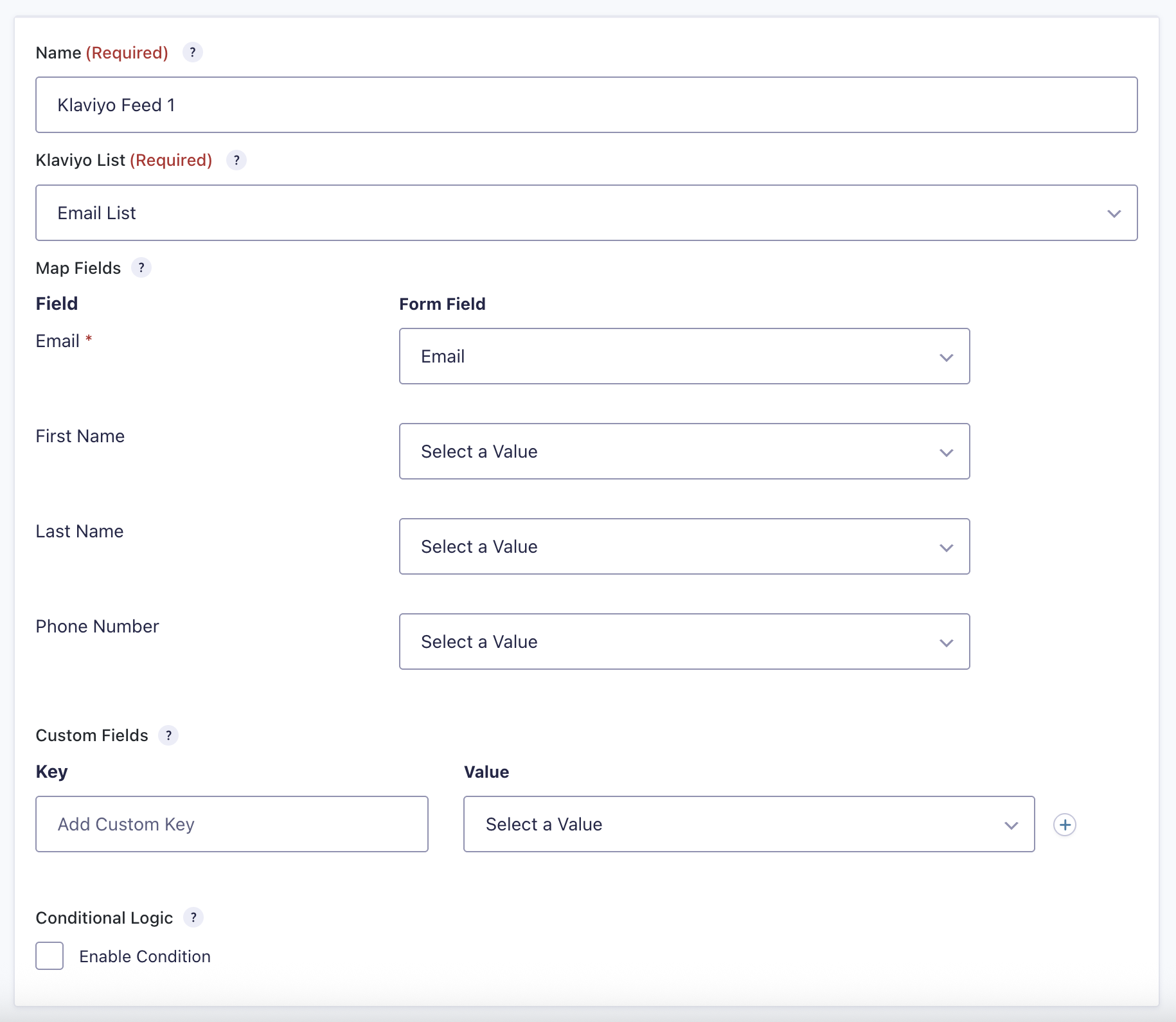
This table describes the feed settings options you will be offered for a Klaviyo feed.
| Setting | Description |
|---|---|
| Name | To identify your feed when viewing the feed list page. Required |
| Klaviyo List | Select the Klaviyo list you would like to add the profile to. Required |
| Map Fields | Map Klaviyo profile fields to the form field that will send that information. Email is required. First Name, Last Name, and Phone Number are optional. |
| Custom Fields | Map additional key/value pairs to send to Klaviyo as custom profile properties. Enter a Key and select the form field whose value should be sent for that key. Click Add Custom Key to add more rows. |
| Conditional Logic | If unchecked, every successful form submission will be sent to Klaviyo. If you wish to set specific conditions for sending form data to Klaviyo, then check the “Enable Condition” box and fill out your required criteria. |