

Overview
The Advanced Post Creation Add-On (APC) allows you to create and edit posts on your site, using either a block or a shortcode. This article provides step by step instructions on setting up and customizing the APC Posts block and shortcode.
Pre-Requisites
Before configuring the block or shortcode, ensure the following:
- Configure a Post Creation Feed for your form.
For detailed instructions, refer to. See Creating a Feed for the Advanced Post Creation Add-On. - Embed the form in a Page for editing.
To enable editing of existing posts, the form must be embedded in a WordPress Page. While you can display the form on a Post or Custom Post Type for initial submissions, a separate Page embedding is explicitly required for the edit functionality.
Using the APC Posts Block
- In your WordPress dashboard.
Select an existing post/page or create a new one. - Add the APC Posts Block.
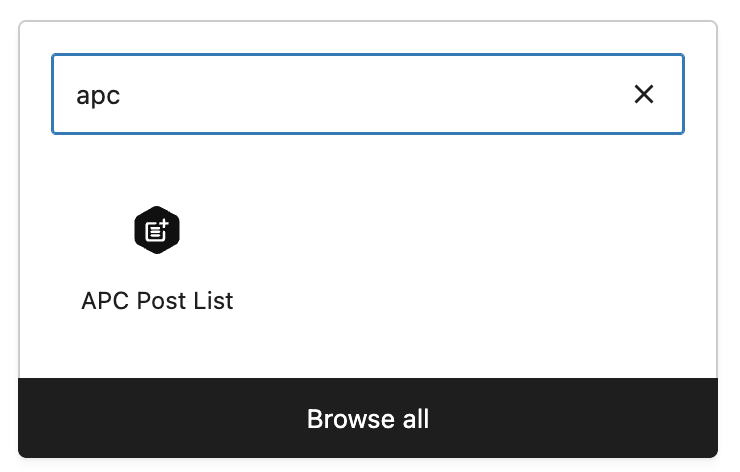
In the block editor, click the + icon to add a new block. Search for APC Posts or find it under the available blocks.
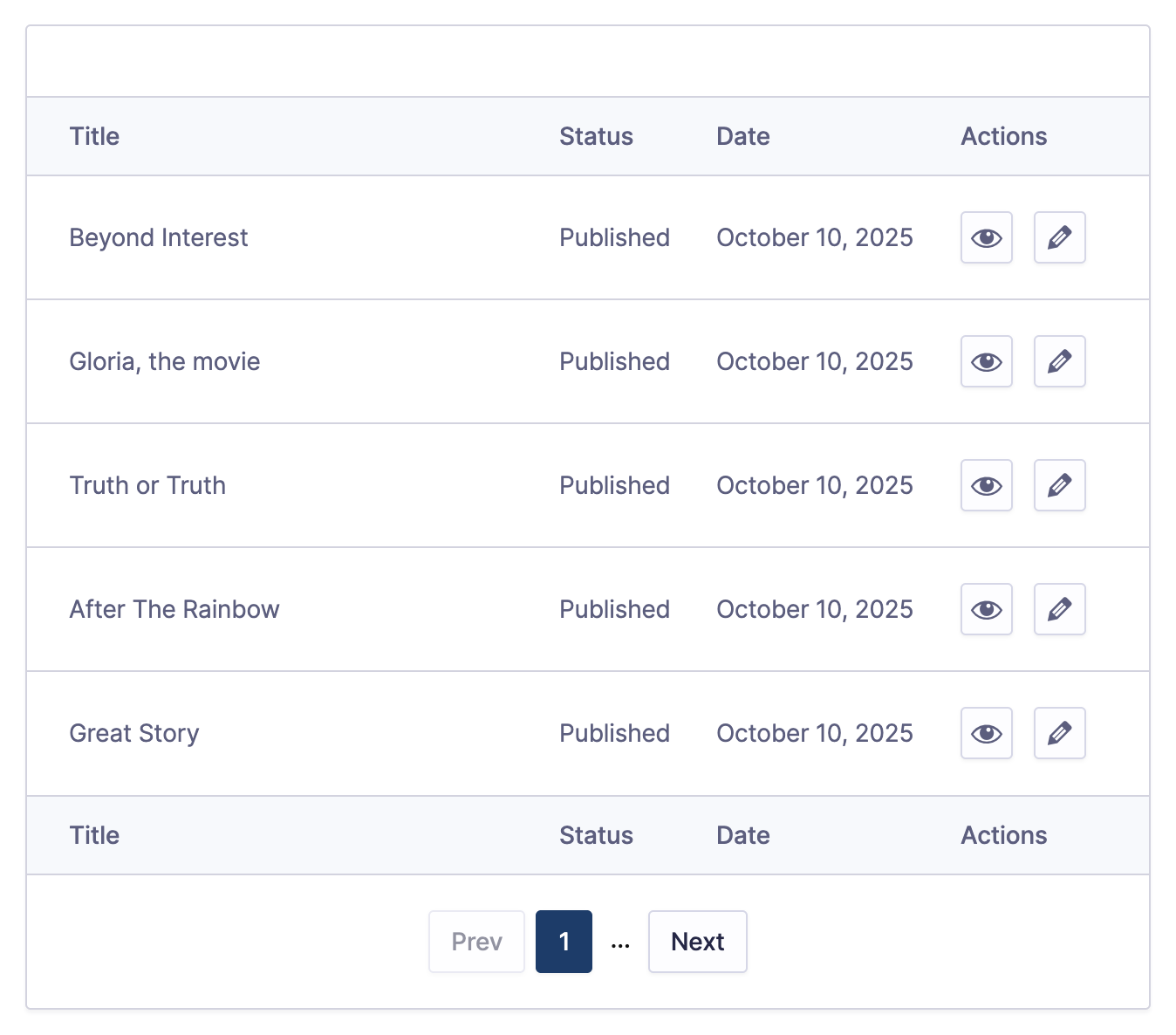
Note: At least one post should have been created using the Advanced Post Creation Add-On for items to appear in the list.
Refer to the Advanced Post Creation Block Settings Reference article for more information on customizing the APC Block.
Using the APC Posts Shortcode
If you are using a non block editor, you can use the shortcode to display the post list.
Add the Shortcode.
In the editor, insert the following shortcode where you want the post list to appear.This displays the default post list with all forms and standard settings.
[gravityforms action="apc_posts_list"]
Customize the Shortcode.
Add parameters to the shortcode to adjust the table’s appearance. Use the parameters listed in the table below.
Example of a fully customized shortcode:
[gravityforms action="apc_posts_list" form_id="5" posts_per_page="10" header_text="My Posts" hide_status="true" hide_date="true" style="dark" transparent_bg="true"]
| Parameter | Description | Default |
|---|---|---|
| form_id | Defines which form’s posts are displayed in the list. Only forms with APC feeds are listed. | All forms |
| posts_per_page | Sets the number of posts displayed per page in the grid. | 5 |
| header_text | Adds a custom header above the post list. | (blank) |
| hide_status | Hides the “Status” column from the table. Accepts true or false. | false |
| hide_date | Hides the “Date” column from the table. Accepts true or false | false |
| style | Sets the visual style of the table. Accepts light or dark. | light |
| transparent_bg | Makes the table background transparent. Accepts true or false | false |
| active_page_button_color | Changes the color of the pagination button for the current page. | (blank) |
Payment Feeds
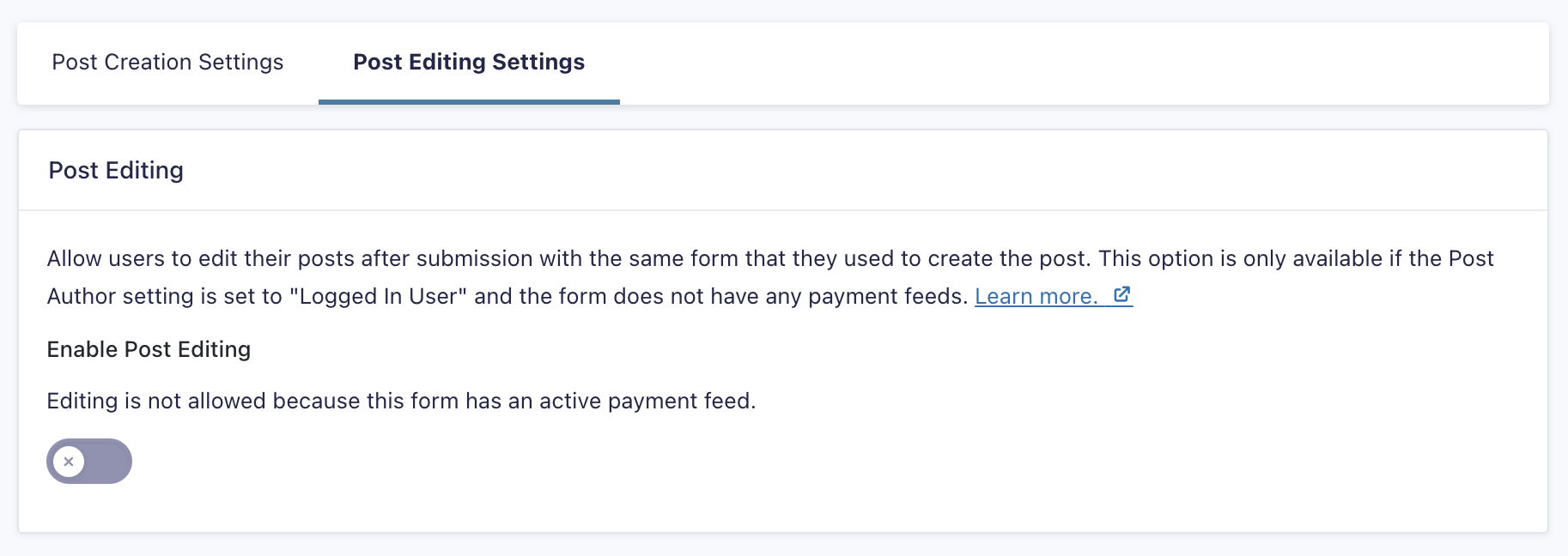
Note: Post editing is not supported for forms with active payment feeds. This restriction exists because allowing edits on entries tied to payments can cause data and transaction inconsistencies.
When a form has any payment feeds configured, the Edit Posts setting is automatically disabled. A notice will appear to inform you that post editing is unavailable. If you need users to update post content while also managing payments, consider using Gravity Flow, which supports more advanced workflow options.
When editing is enabled and a payment feed is later added to the same form, a message will appear on the feed settings page for all payment add-ons, warning that allowing a payment to feed will disable post editing.

Frequently Asked Questions
Why can’t I edit my post?
You must be logged in as the post author, and the Edit Post Page must include the same form that created the post. If the form is missing, the page will load but no fields will be editable.
Can I place the edit form on the same page as the APC Posts block?
Yes. The form can be placed on the same page or on a separate page specified as the Edit Post Page in the feed settings.
Can I edit any post on my site using APC?
No. Only posts created by the same form through an Advanced Post Creation (APC) feed can be edited, and only by the original logged-in user who submitted it (effectively, the post author). The form must have a Post Creation feed configured, and editing will fire that feed again.
What happens if I delete or trash an entry that created a post?
Trashing an entry does not delete its related post. The post will remain published and editable while the entry is in the Trash. Once the entry is permanently deleted, the post will no longer be editable from the front end.
What happens if a post is trashed or deleted?
When a post created by the APC is moved to the Trash, its status in the APC Post List will change from Published to Draft. Once the post is permanently deleted, it will be removed from the list.