

Introduction
This quick reference guide lists all settings related to the Cloudflare Turnstile Add-On and provides a brief description of each.
Global Settings
Where To Find Them
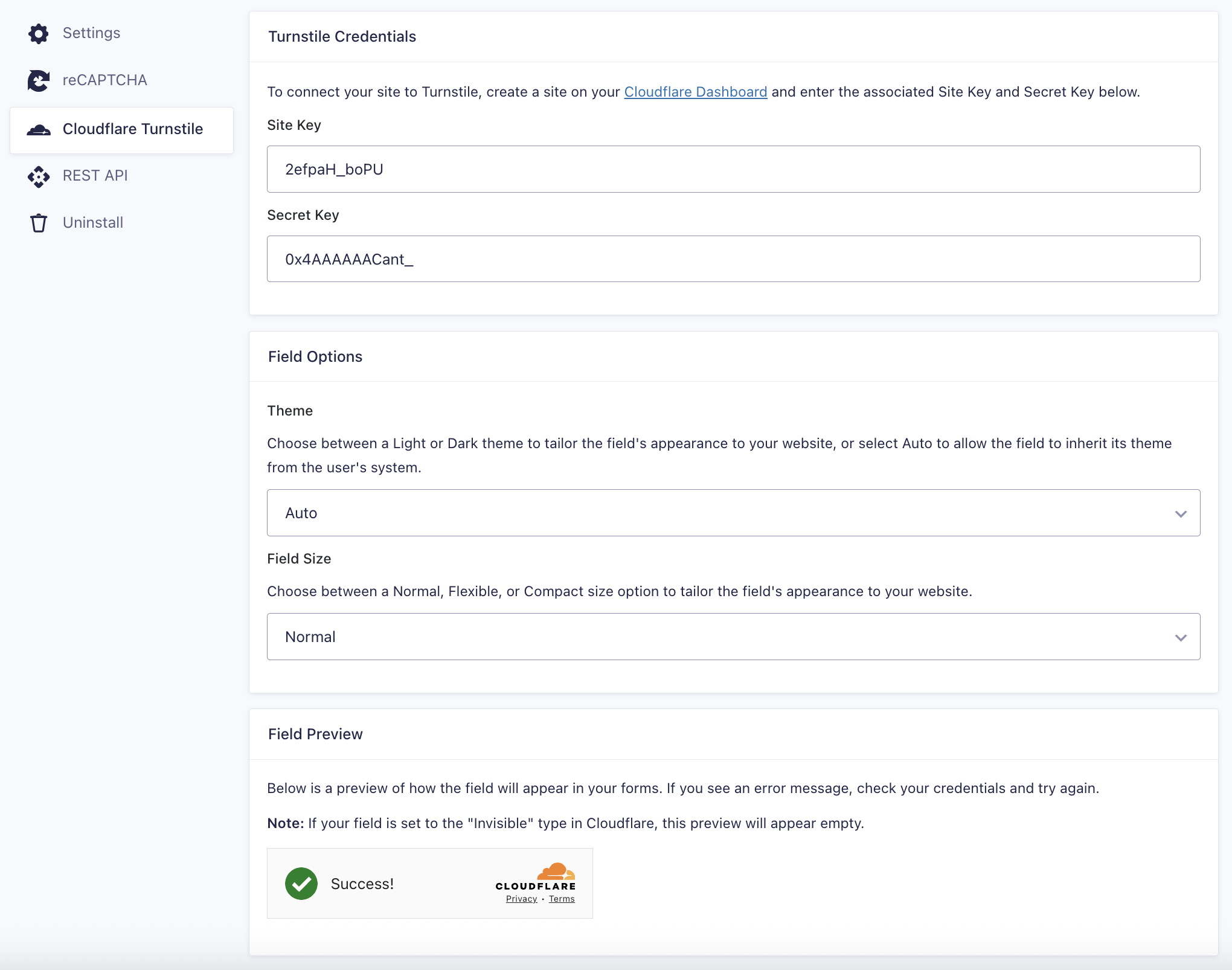
The Turnstile Add-On global settings are accessible under the Gravity Forms Settings area in the WordPress admin. Follow the menu path Forms → Settings → Cloudflare Turnstile.
Turnstile Settings
| Setting | Description |
|---|---|
| Site Key | The site key is used to invoke the Turnstile service on your site or mobile application. See note (1). |
| Site Secret | The secret key authorizes communication between your application backend and the Turnstile server to verify the user’s response. See note (1). |
| Theme | Choose between a Light or Dark theme to tailor the field’s appearance to your website, or select Auto to allow the field to inherit its theme from the user’s system. |
| Field Size | Choose between a Normal, Flexible, or Compact size option to tailor the field’s appearance to your website. |
| Field Preview | Once you have saved your site key and site secret, you’ll see a preview of the Turnstile field based on your settings. See note (3). |
Notes
(1) Turnstile keys are obtained from within your Cloudflare account. They must be generated for each site where you wish to place a Turnstile.
(2) You can override the field style on a per-form basis, via the Appearance panel in the Turnstile field settings.
(3) If your field is set to the “Invisible” type in Cloudflare, the preview will appear empty.