

Description
This article provides a detailed description of all available settings for the HubSpot Add-On. For setup instructions, refer to the Setting Up the HubSpot Add-On article.
Account Settings
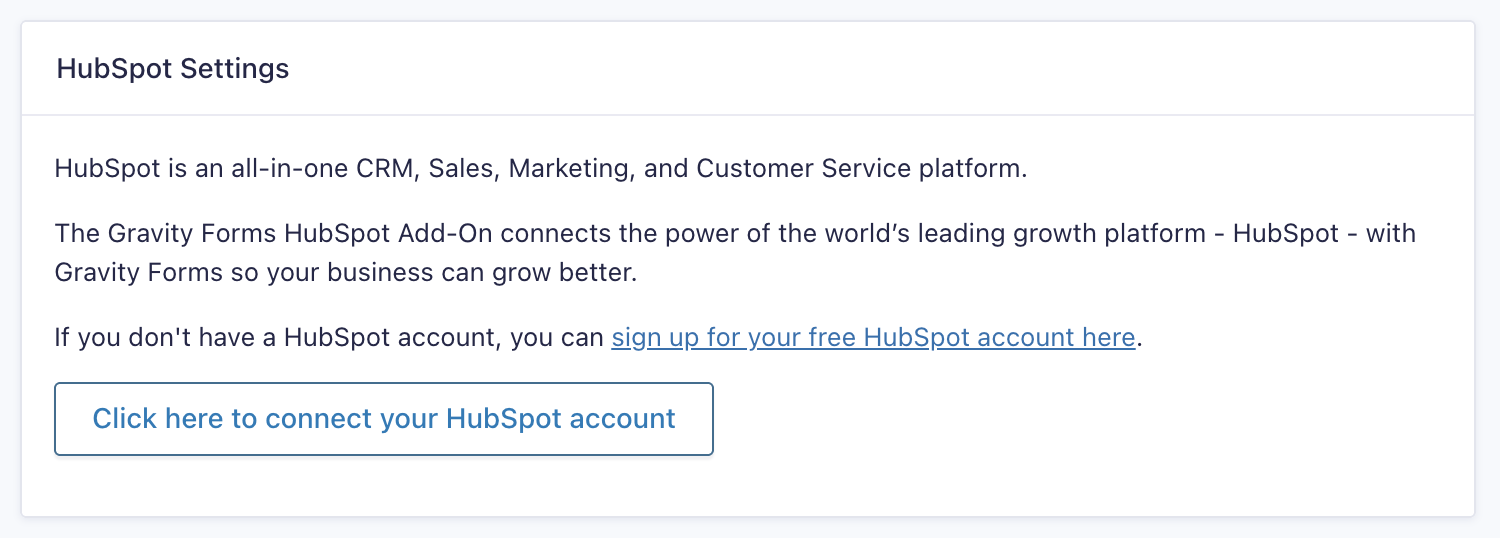
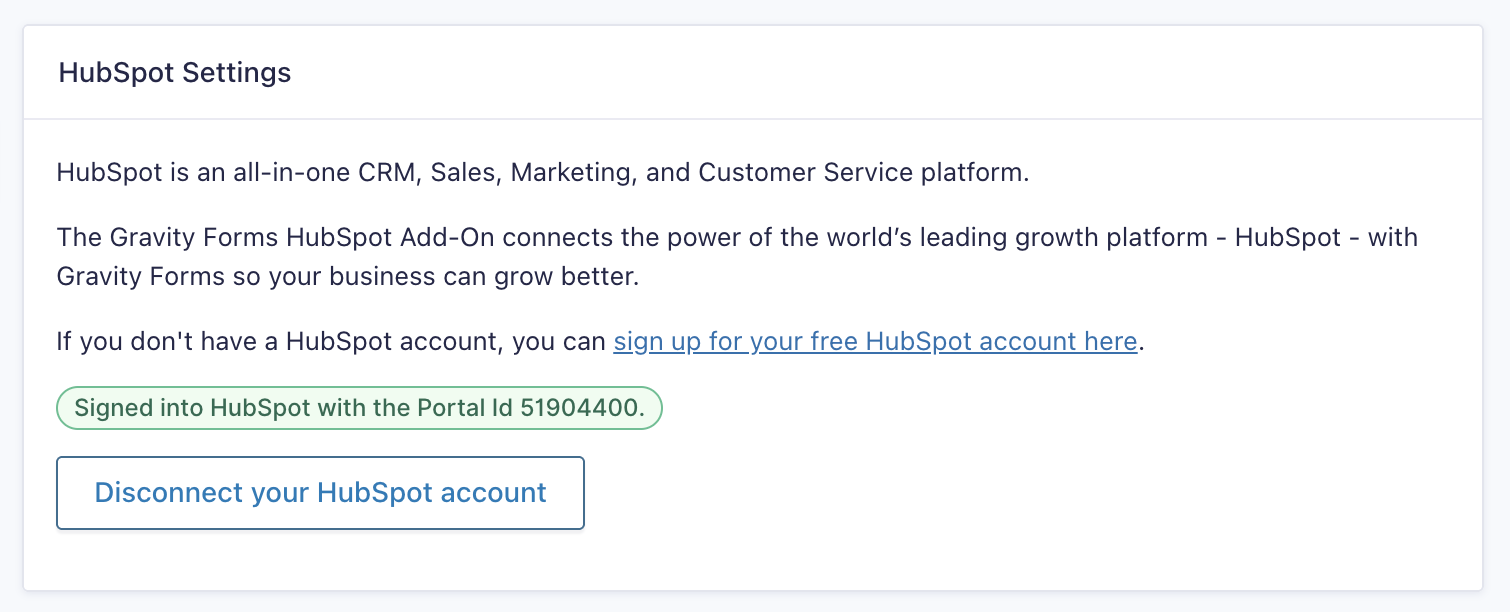
Connect the add-on to the HubSpot portal you want to send data to. Once authenticated, the settings page displays the Portal ID you are signed in with, along with a link to disconnect. Disconnecting revokes the add-on’s access; existing feeds are retained but will not process until an account is connected again.
| Setting | Description |
|---|---|
| HubSpot Account | Authenticates the add-on with HubSpot. Displays the connected Portal Id and a link to disconnect your HubSpot account. Required |
Custom Contact Properties Cache
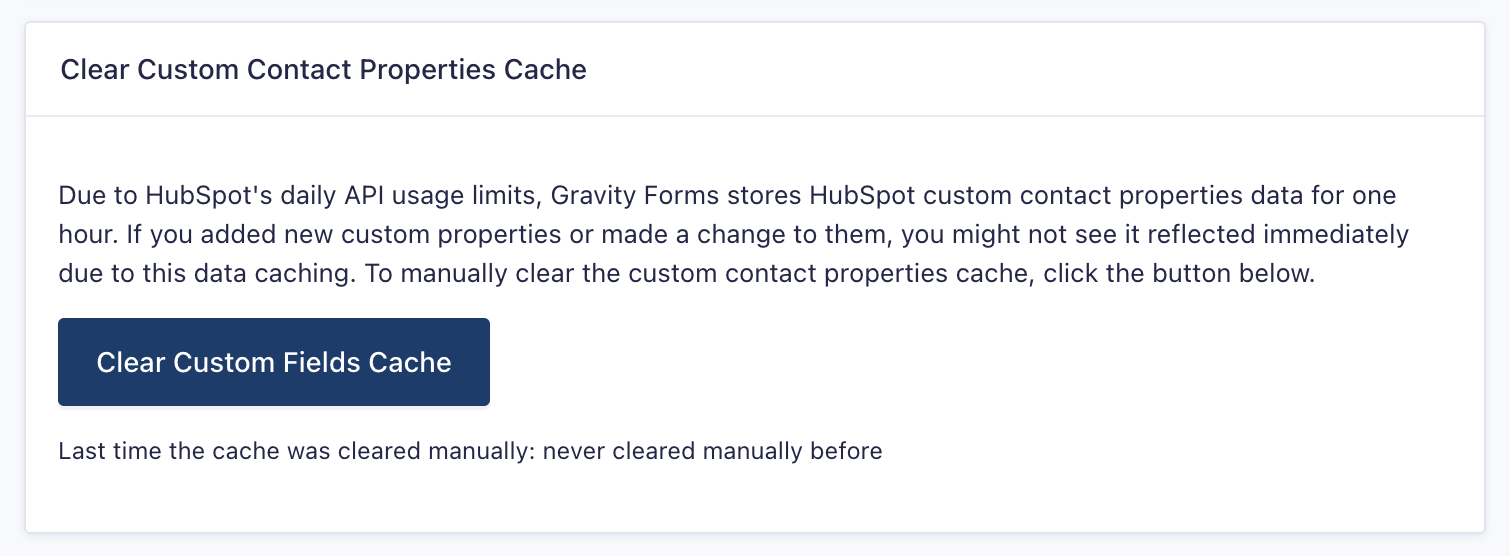
Due to HubSpot’s daily API usage limits, Gravity Forms stores HubSpot custom contact properties data for one hour. If you added new custom properties or made a change to them, you might not see it reflected immediately due to this data caching.
| Setting | Description |
|---|---|
| Clear Custom Fields Cache | Manually clears the cached custom contact properties so current properties are pulled on the next request. The last time the cache was cleared manually is displayed below the button, or “never cleared manually before” if it has not been cleared. |
Tracking Script Settings
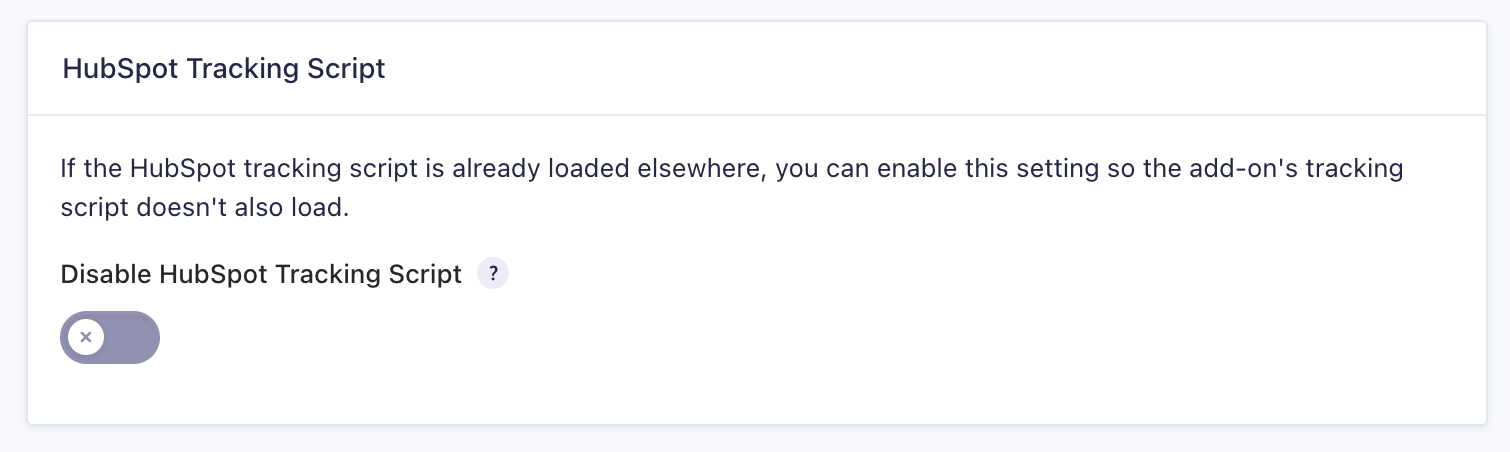
If the HubSpot tracking script is already loaded elsewhere (by the official HubSpot plugin or a code snippet), you can enable this setting so that the add-on’s tracking script doesn’t load as well.
| Setting | Description |
|---|---|
| Disable HubSpot Tracking Script | Prevents this add-on from outputting its own HubSpot tracking script. |
Tracking script vs. the per-form cookie setting
The global toggle only controls whether this add-on prints its own tracking script. The per-form setting runs at feed submission and only decides whether an existing hubspotutk cookie value is sent in that feed’s payload.
Note: The cookie is created on the client side by HubSpot’s tracking JavaScript. Disabling the global toggle stops the add-on’s script from creating it, but only if nothing else on the site loads HubSpot tracking (official plugin, manual snippet, GTM, etc.). If another source is present, the cookie can still exist, and the per-form setting works as before: included by default, excluded if toggled.
| Disable HubSpot Tracking Script (global) | Exclude tracking cookie (per feed) | |
|---|---|---|
| What it controls | Whether the add-on prints its own tracking script | Whether an existing hubspotutk cookie value is sent in the feed’s API payload |
| When it runs | Page render | Feed submission |
| Effect on the cookie | Prevents the add-on’s script from creating it, only if no other source loads HubSpot tracking | None |
| Default | Script enabled (setting off) | Cookie value included |
Preventing the script from being output also stops it from capturing submissions before they reach the server. Excluding the cookie at feed processing does not. If the script is still output, omitting the cookie only means HubSpot can’t use that value to identify which existing contact to update. It may still update an existing contact if it finds a match on the email address.