

Pre-Requisites
Setup
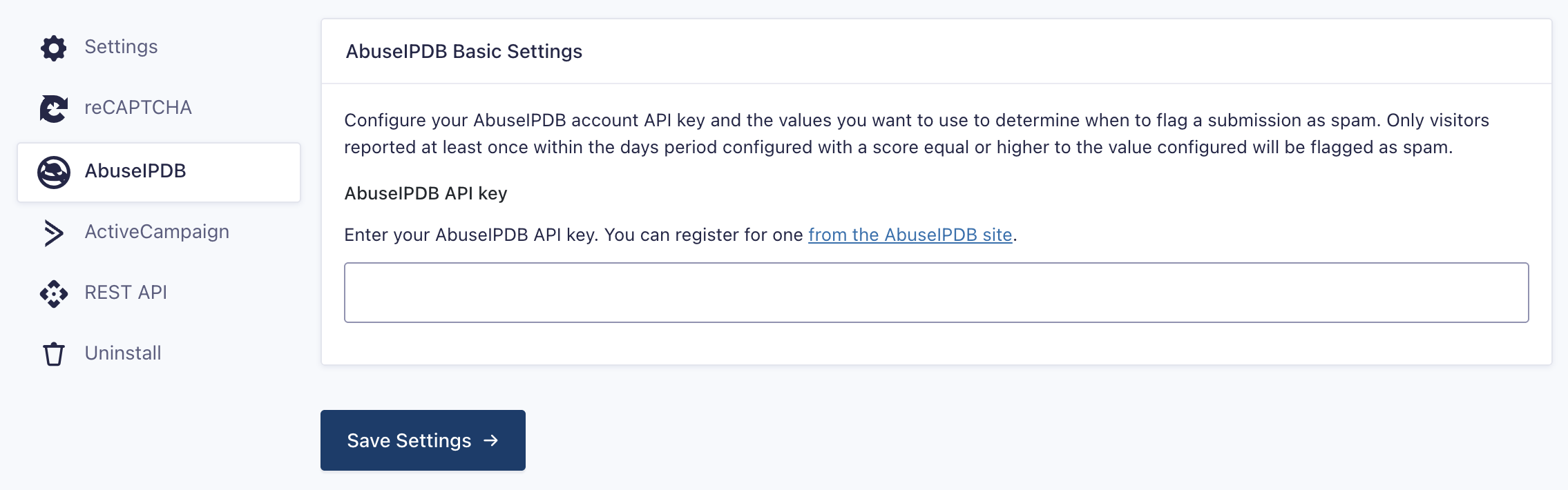
- Log in to your WordPress admin dashboard.
- In the left-side navigation menu, hover over Forms, then click Settings.
- From this page, click the AbuseIPDB tab.
- Enter your API Key. You can register for one from the AbuseIPDB site.
- Click Update Settings.
- After the API is validated, settings for the add-on will be displayed.
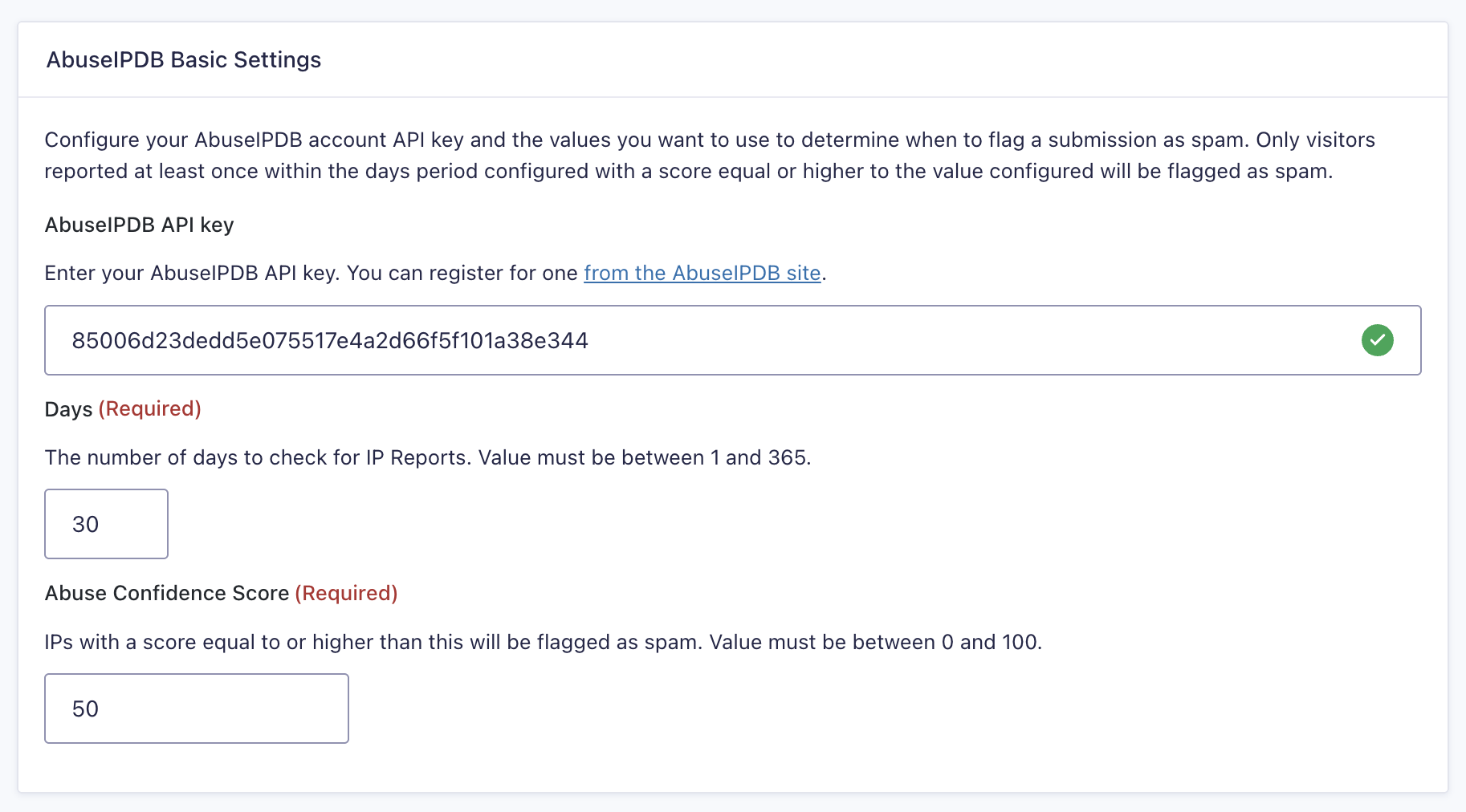
For a detailed description of all available settings, refer to the AbuseIPDB Settings Reference article.
Enable it Globally for All Forms
Once you’ve configured AbuseIPDB, it’s disabled for all forms by default. To enable it globally, go to Forms → Settings → AbuseIPDB and toggle “Enable AbuseIPDB by Default.”
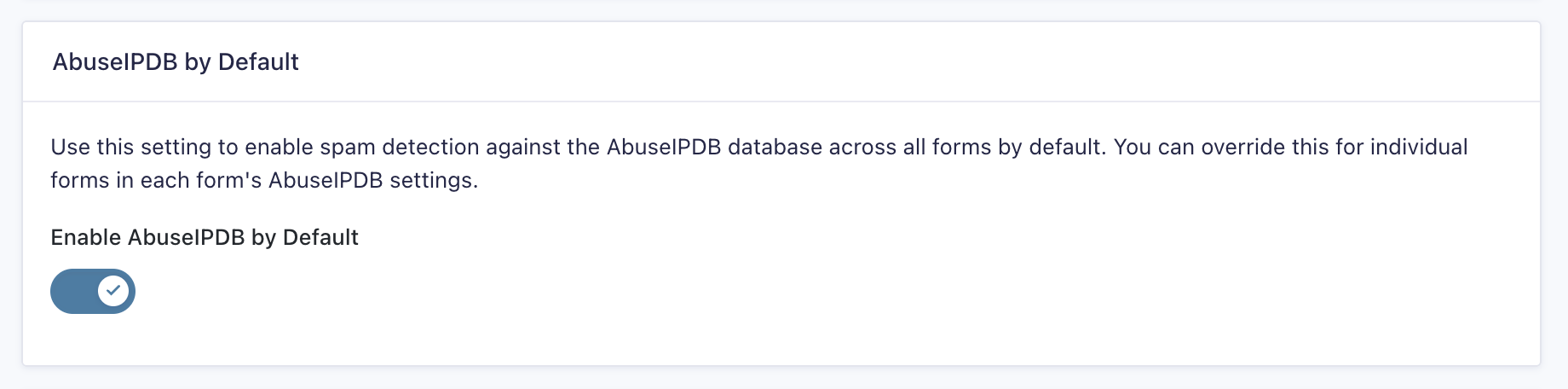
Configure per Form
To configure the global setting for a specific form, go to the form settings, then navigate to the AbuseIPDB section. Toggle the “Enable AbuseIPDB for this form” option and save the form.
