Prerequisites
Setup
Before you can begin creating a feed for the Trello Add-On, you will first need to authorize it to access your Trello account.
- Log in to your WordPress admin dashboard.
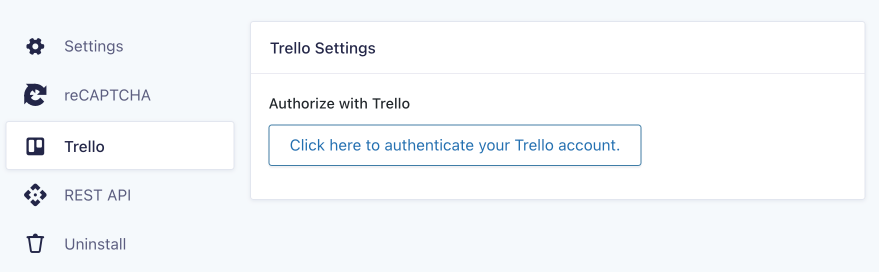
- Go to Forms > Settings > Trello. You’ll be presented with a button to authorize with Trello. Click the button to authenticate with your Trello account.
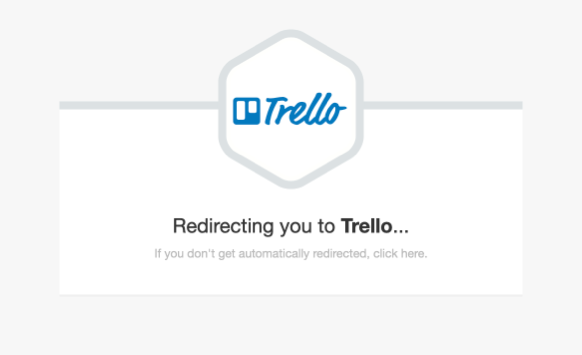
You will be presented with a notice advising you are being redirected to Trello.
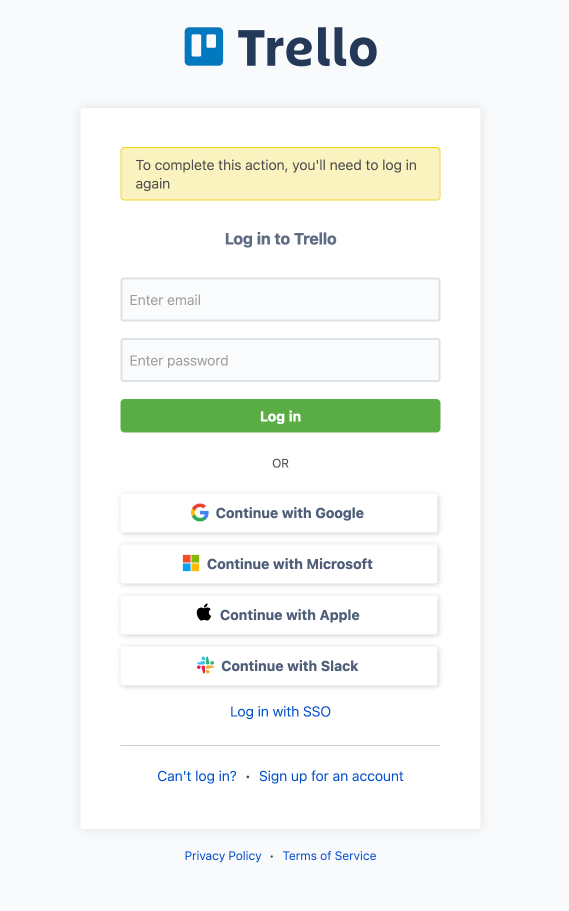
If you are not already logged into your Trello account, you will be asked to log in to Trello. Log in to Trello.
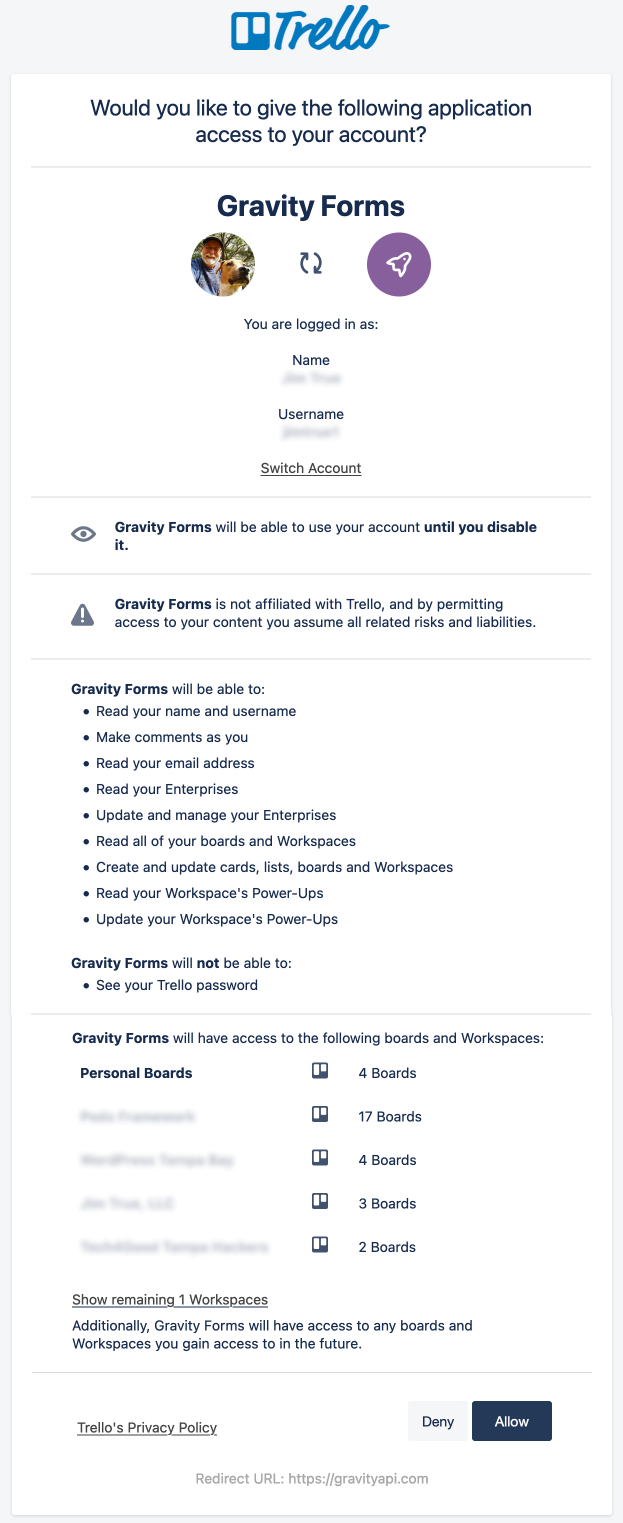
Once you are logged into your Trello account, the next dialogue asks you “Would you like to give the following application access to your account?” This dialogue will include:
- Application Name: Gravity Forms
- The Trello account you’re logged into and your username
- The permissions Gravity Forms is requesting for your Trello account
- The boards and workspaces Gravity Forms will have access to
Click Allow to authorize Gravity Forms to access your account.
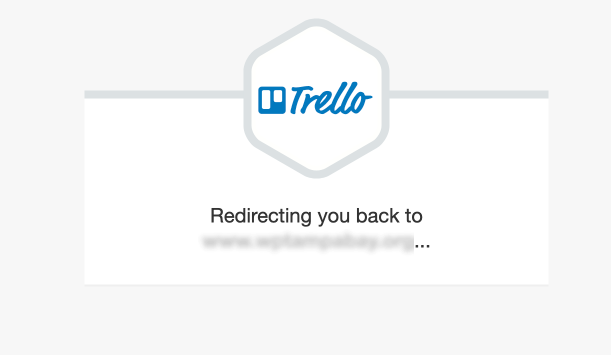
You will be redirected back to your website from Trello.
You will now be returned to your Gravity Forms Trello settings and will see a successful connection to Trello.
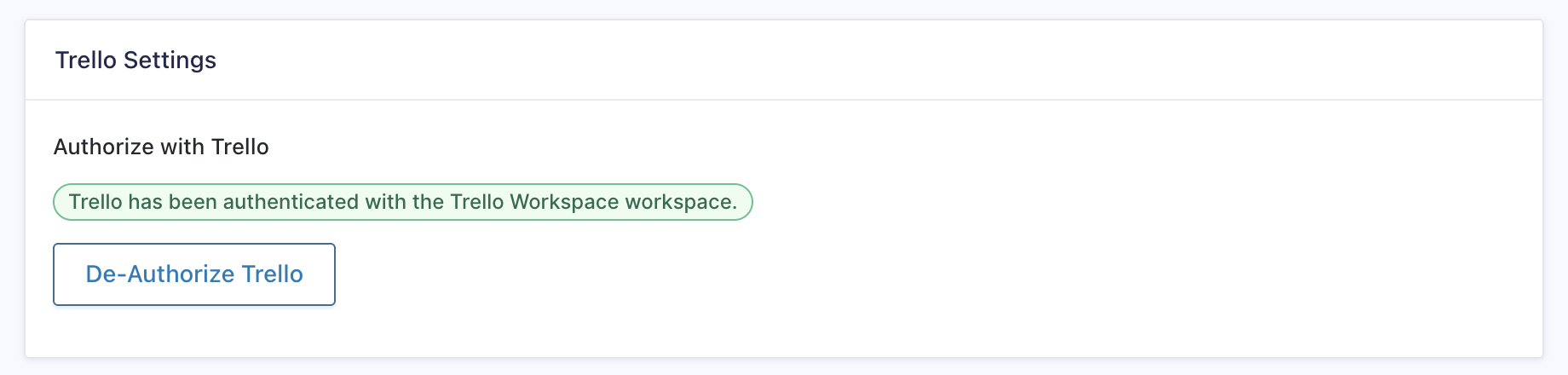
Once you have authorized the Trello Add-On, you’re ready to begin creating a feed for the Trello Add-On.
Upgrading from an Earlier Version
If you are upgrading from a version of the Trello Add-On earlier than 2.0, you’ll need to re-authenticate to Trello. This will not impact any of your existing feeds.
You will see a warning in your Gravity Forms admin screen: Gravity Forms Trello requires re-authentication. Please disconnect and reconnect to continue using this add-on.
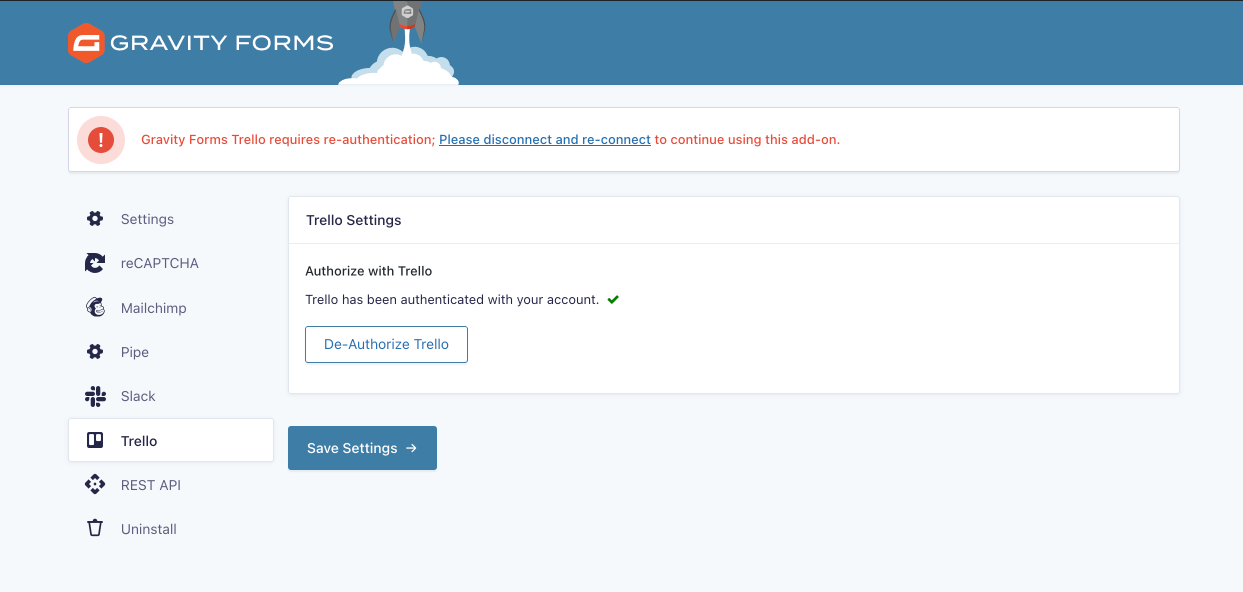
Re-Authenticating to Trello
Go to Forms > Settings > Trello and click De-Authorize Trello.
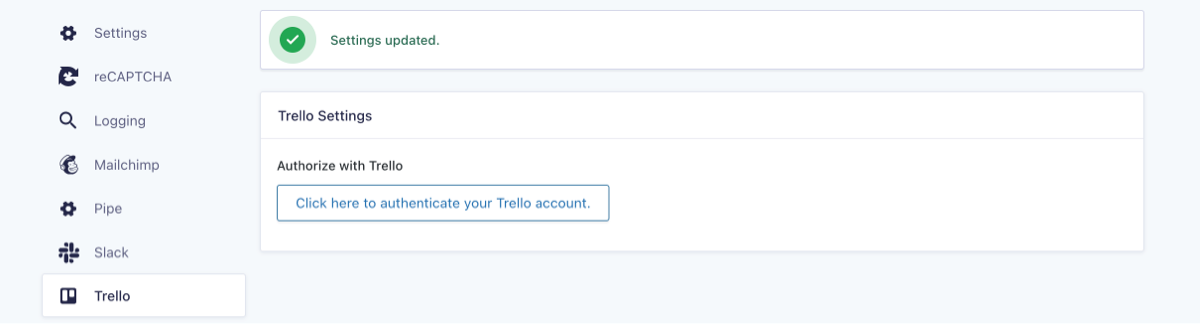
After clicking, you’ll receive the Settings Updated notice, and the button will change to Click here to Authenticate your Trello Account. Continue with the steps above to authenticate your Trello account.