

Overview
When the reCAPTCHA Add-On is active, entries may display either a score or a status value in the Entries List and Entry Detail pages. This article explains what those values mean.
Scores
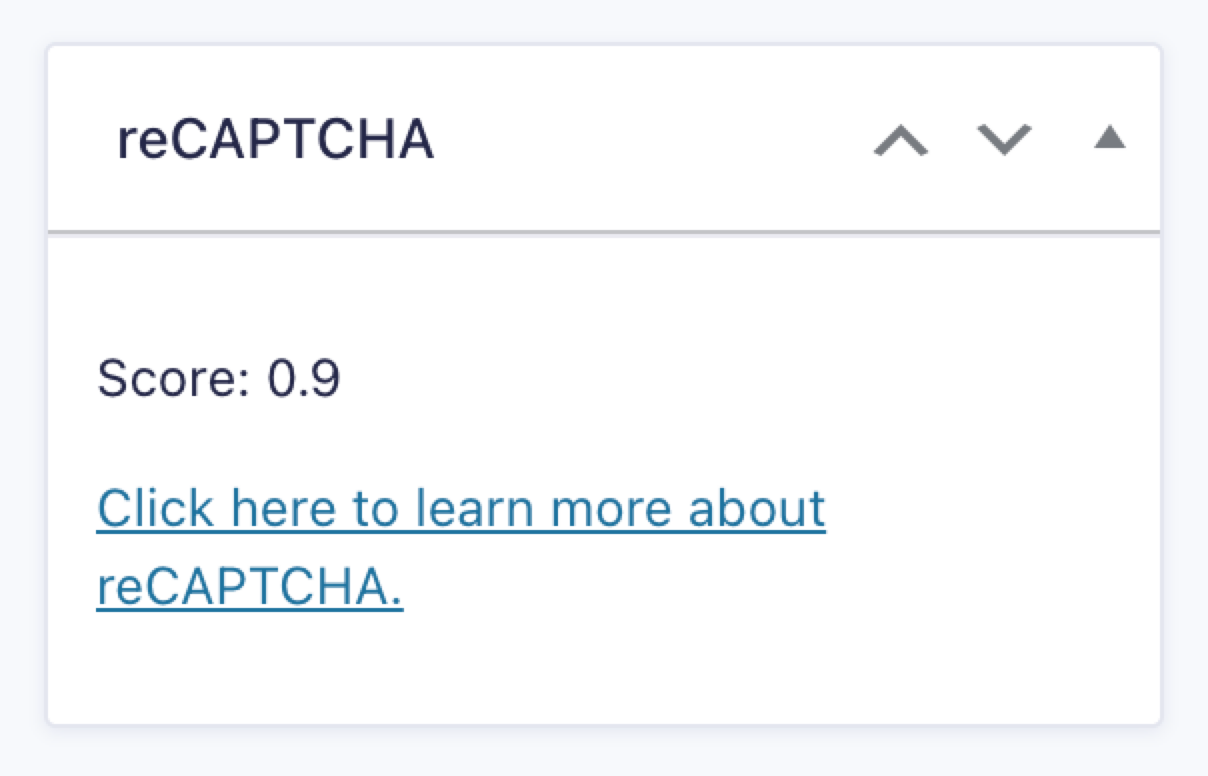
For forms using reCAPTCHA v3, a score between 0 and 1 may be displayed. A lower score indicates a higher likelihood that the request is from a bot. For details on how to interpret these scores, see Google’s documentation.
Note: A score of 0 may also appear when the add-on did not request an assessment from reCAPTCHA because the entry had already been marked as spam by another solution, such as the Honeypot.
Statuses
In some cases, a status is shown instead of a score. These statuses indicate configuration or service conditions.

Score and Status Reference
| Status/Score | Description |
|---|---|
| A score between 0 and 1 | reCAPTCHA v3 score indicating likelihood of good/bot interaction (1.0 is very likely a good interaction, 0.0 is very likely a bot) |
| disabled | reCAPTCHA is disabled in the form settings. |
| disconnected | No valid v3 site and secret keys are saved, or the add-on does not have an Enterprise authentication token. |
| disconnected (reauthentication required) | The request to refresh the Enterprise authentication token failed. Your Google Workspace session requires periodic reauthentication. Please reconnect the add-on, and contact your Google Workspace administrator if you need help with this policy. |
| disabled (quota limit) | The reCAPTCHA API quota limit has been reached. |
| disabled (token refresh in progress) | Another settings page view or form submission is currently refreshing the Enterprise authentication token. |
| disabled (token refresh failed) | The request to refresh the Enterprise authentication token failed. It will be retried during the next form submission or when viewing the settings page. |
| not applicable (v2) | reCAPTCHA v2 doesn’t produce a score, so this value distinguishes those entries from actual disconnected or error states. |
| validation bypassed | The reCAPTCHA API returned an error, such as invalid credentials, so the submission was allowed without a score check and was not marked as spam. |
Refer to the Reviewing Spam Submissions article for more information about handling spam entries.
Note: When an entry shows validation bypassed, check the entry notes for “reCAPTCHA validation was bypassed due to an API error.” and enable logging for the reCAPTCHA Add-On to see the error returned by the API. A site key or project number from a different Google Cloud account than the one connected is a common cause.