

Overview
Note: Using a custom Dropbox app with the Dropbox Add-On requires SSL. If you do not have an SSL certificate installed on your site, you will need to contact your hosting provider to obtain one.
Dropbox.com restricts third-party apps to only accessing their own folder. Using a Custom Dropbox App is necessary only if you need to upload files to a location outside the default app folder created for the Dropbox Add-On.
Steps
This section assumes that you have enabled the gform_dropbox_enable_custom_app filter and already created a custom Dropbox app.
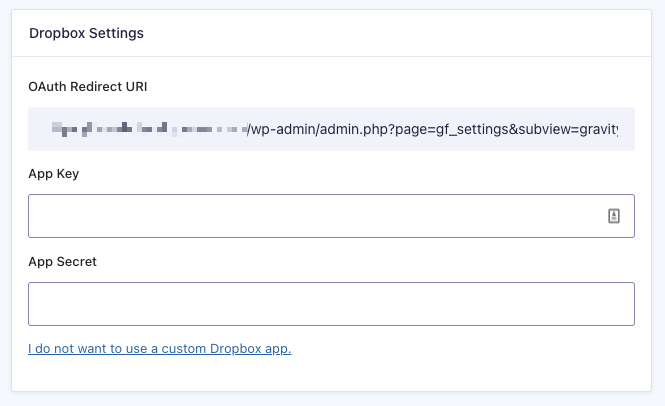
- Go to the Dropbox Settings page and click “I want to use a custom Dropbox app.” You will see OAuth Redirect URI, App Key, and App Secret. Copy the OAuth Redirect URI to be used later.
- Open the Dropbox App Console and select the Dropbox app you would like to connect.
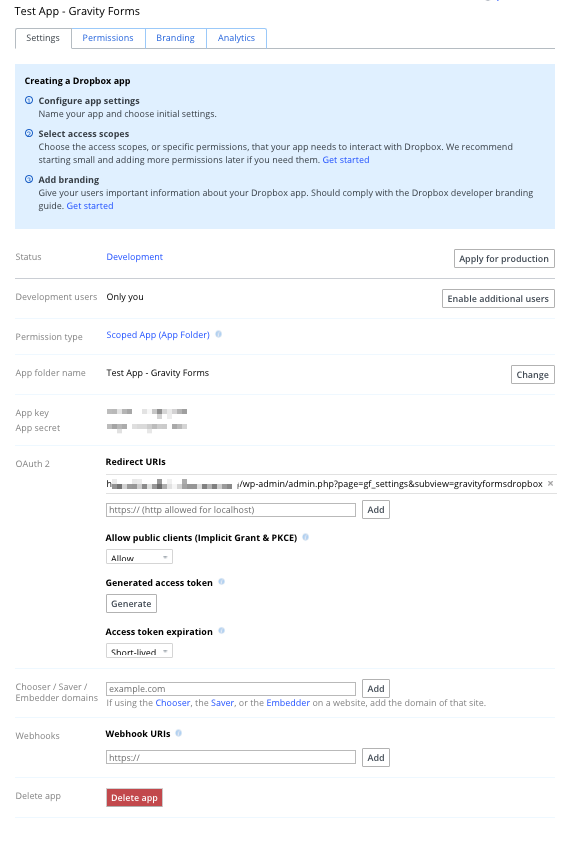
- Paste the OAuth Redirect URI you copied in step 1 into the Redirect URIs field and click Add.
- Copy the App key and App Secret and paste them in the Gravity Forms – Custom Dropbox Settings page.
- Hit Enter, and a new button labeled “Click here to connect to Dropbox” will appear. Click it.
- Sign in if asked, and authorize the Dropbox Add-On. You have now successfully authorized the Dropbox Add-On to access your Dropbox account.