

Overview
Starting with Stripe Add-On version 7.0.0, the Stripe Payment Element (Stripe Field) will not appear when a non-zero amount is calculated. This applies on form load and during form filling. This is the expected behavior.
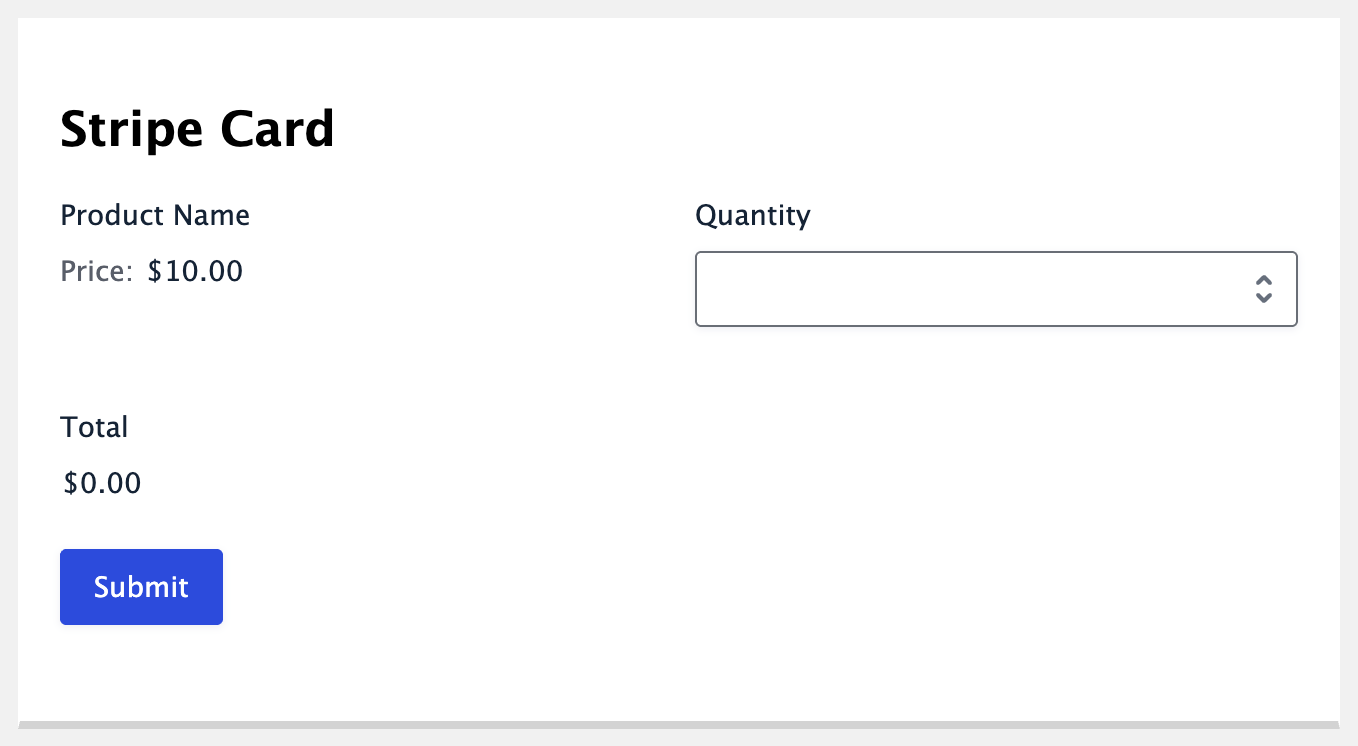
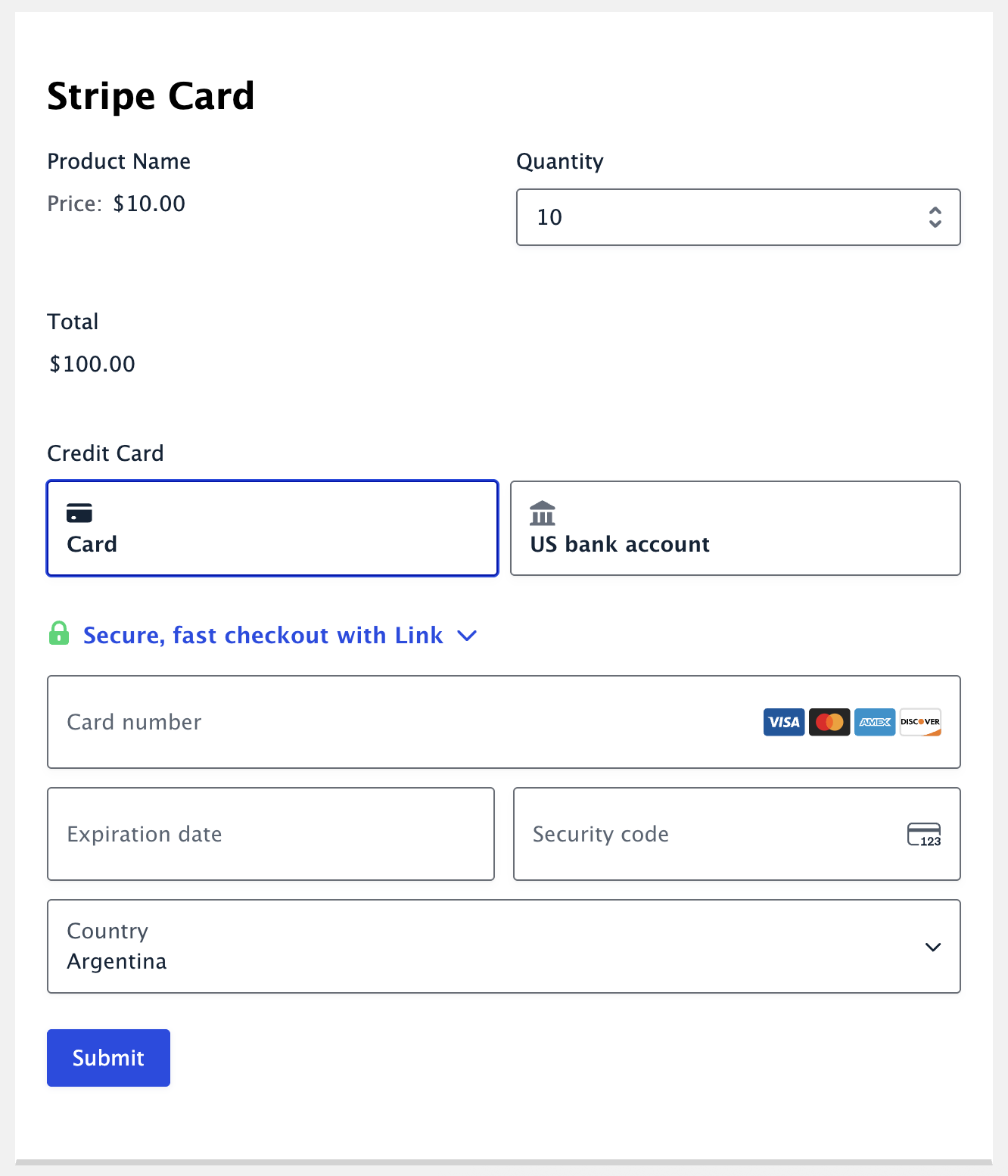
Conditions
This “no card field showing” behavior will occur when:
- Site is running Stripe Add-On 7.0.0 or later.
- The form uses the Payment Element (Stripe Field).
- The form total is zero.
Example 1: A form that has only one Product field with a 0 Quantity will not display the Stripe field when that form page is rendered.
Example 2: After entering a coupon code that reduces the amount due to $0, the payment field will disappear.
What You Can Do
If you want the Stripe Field to be visible when the page loads, make sure the form has an amount due from the start by defaulting the product quantity to 1. There are two ways to do this.
Use a Separate Quantity Field
The Product field’s built-in quantity input doesn’t have a default value setting, so you’ll need to use a separate Quantity field instead.
- Edit your Product field and check Disable quantity field.
- Add a Quantity field to the form and link it to your Product field.
- In the Quantity field’s Advanced settings, set the Default Value to 1.
- Save the form.
Populate the Quantity Dynamically
If you’d rather keep the Product field’s built-in quantity, you can populate it with 1 using dynamic population.
- Edit your Product field and open the Advanced tab.
- Check Allow field to be populated dynamically.
- Enter a parameter name for the Quantity input, such as
product_qty. - Save the form and add the following code snippet to your site.
add_filter( 'gform_field_value_product_qty', 'populate_qty' );
function populate_qty( $value ) {
    return 1;
}
If you used a different parameter name, replace product_qty in the filter name to match. For more on this filter, see gform_field_value_$parameter_name.
With either option, the quantity is set to 1 when the page loads, so the Stripe Field appears immediately. Customers can still change the quantity, but if they set it to 0, the Stripe Field will be hidden again.
This code can be used in the functions.php file of the active theme, a custom functions plugin, a custom add-on, or with a code snippets plugin.
See also the PHP section in this article: Where Do I Put This Code?=
Generating a notification with a $0 submission
If you require a notification action based on form submission when a coupon has reduced your form total to $0, consider adding two conditional logic statements:
- One notification is dependent on the “Payment Completed” state, and generates your normal receipt after Stripe has processed the payment properly.
- A second notification is linked to the “Form is submitted” action, with conditional logic based on the Coupon field. This will trigger for $0 entries where no payment was taken. Base the conditional logic rule on the coupon codes that would bring the form total to $0, such as “Coupon IS {CODE}”, substituting the codes from the Forms → Coupons page. Add them all, one per rule, and make it an “ANY” rule so that the notification triggers for any of those coupons.