

Introduction
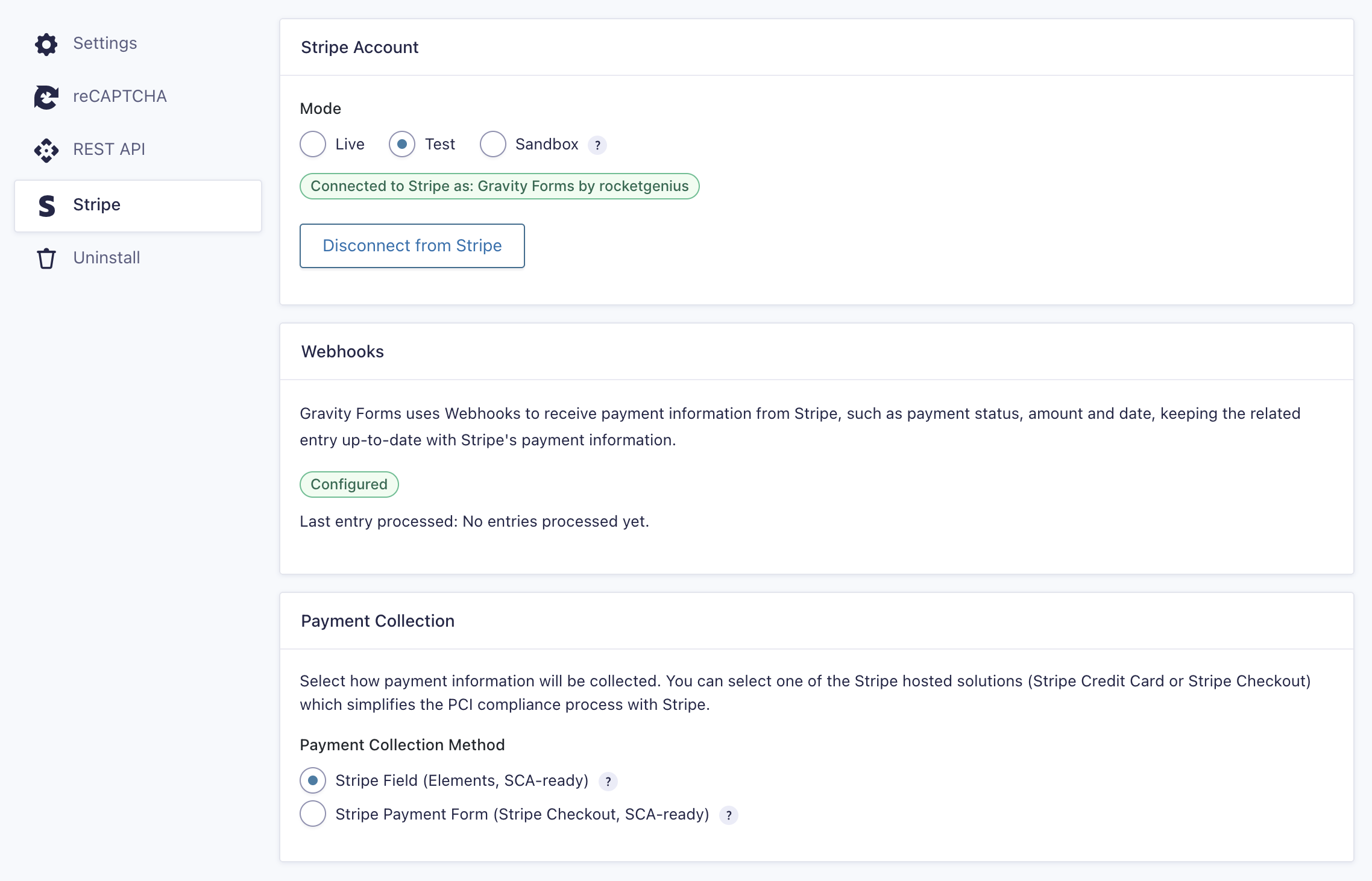
This quick reference guide lists all settings related to the Stripe Add-On and provides a short description of each setting’s purpose.
These settings are available on the Gravity Forms Settings Page, under the “Stripe” tab.
Add-On Settings
| Settings | Description |
|---|---|
| Mode | Live, Test, or Sandbox. Refer to Connecting to Stripe in Live, Test or Sandbox Mode for more details. |
| Webhooks | Displays the current webhook configuration status for your Stripe account. Use the Configure Webhook button to set up or repair the webhook connection. See the Setting Up the Stripe Add-On article for guidance. |
| Payment Collection | Stripe Field or Stripe Payment Form. See Notes |
Stripe Field
Select this option to use a Stripe field hosted by Stripe. The Stripe field can be embedded in a form and supports credit card payments as well as other payment methods such as Google Pay, Apple Pay and bank transfers.
Stripe Field is ready for Strong Customer Authentication for European customers.
Stripe Payment Form
Select this option to collect all payment information in a separate page hosted by Stripe. This option is the simplest to implement since it doesn’t require a Stripe field in your form. Stripe Checkout supports credit card payments as well as other payment methods such as Google Pay, Apple Pay and bank transfers.
Stripe Checkout is ready for Strong Customer Authentication for European customers.
Webhook Status
The Webhooks setting displays one of the following statuses:
Configured
The webhook is active and properly set up in Stripe.
Not Configured
No webhook has been set up, or the existing webhook has been disabled in Stripe.
Misconfigured
A webhook exists in Stripe, but is missing one or more required events.
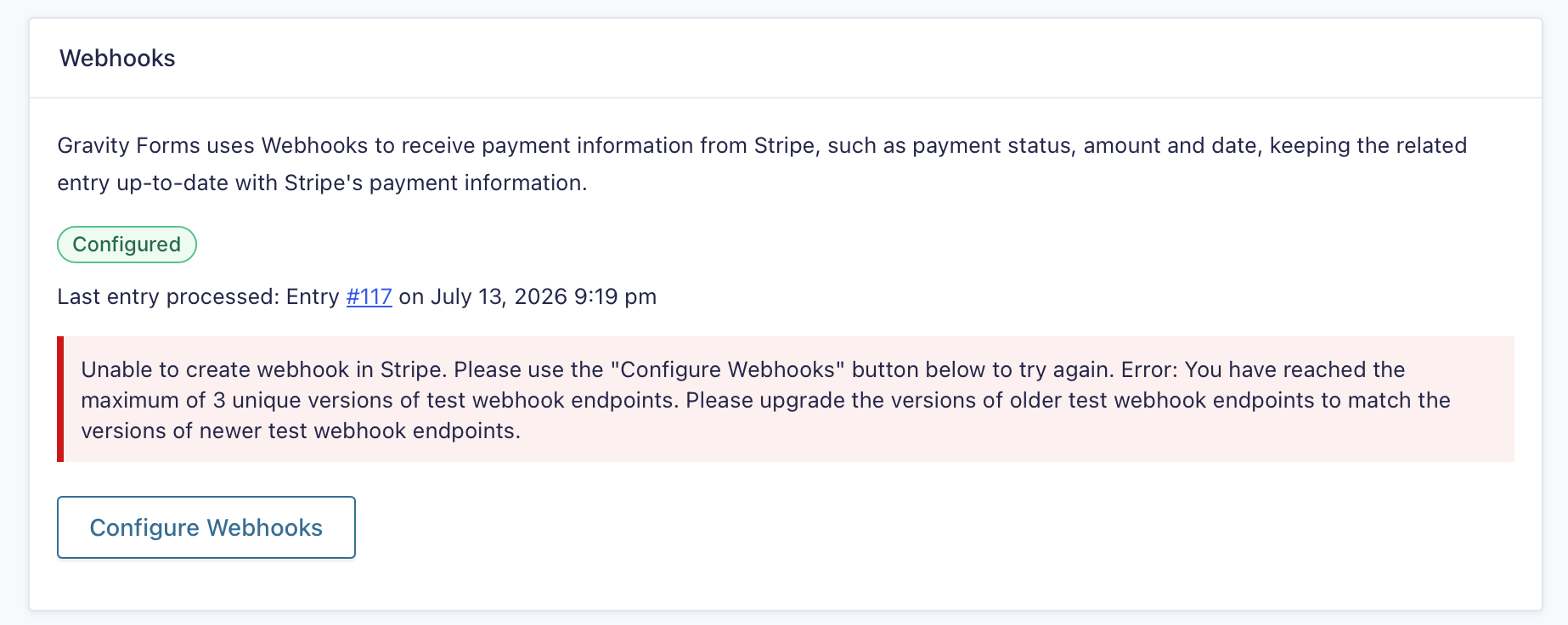
Note: If the status is Configured but not validated, Not Configured, or Misconfigured, click the Configure Webhook button to resolve the issue.