Introduction
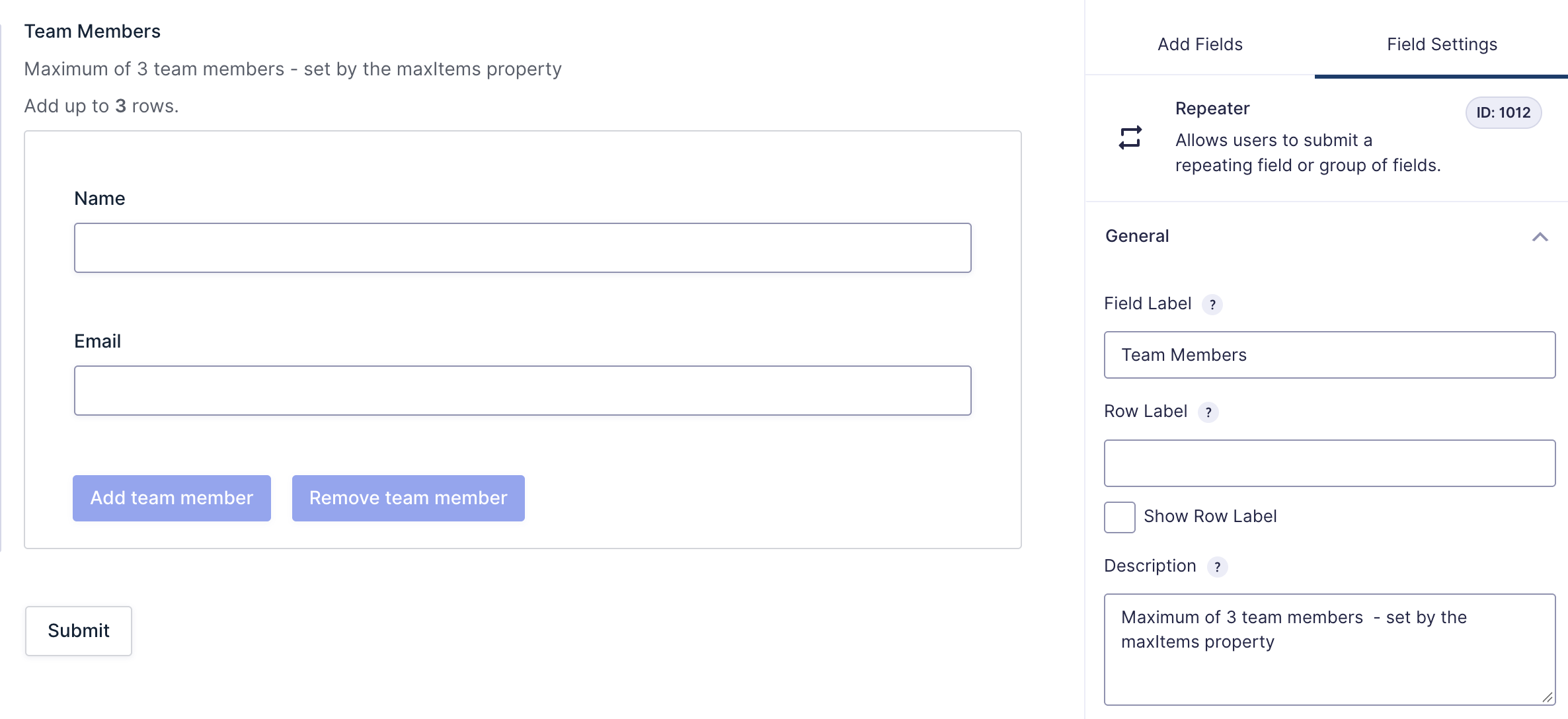
The Repeater field has been available within Gravity Forms for a number of years, but was classified as a beta and could only be added with code. This guide demonstrated how to do that. With the release of Gravity Forms 3.2.0, the repeater field has been brought fully into the Form Editor as a first-class form field.
For those who have previously implemented the repeater field, the following article outlines the steps to convert the programmatically added field into a regular Form Editor field. This is not necessary for form functionality, but is required if you want to manage the field from within the Form Editor.
Make a Repeater Field Editable
- Locate the Code for Adding the Repeater Field.
Identify the section of your code where the repeater field is added to the form. Look for thegform_form_post_get_metafilter.
// Adjust your form ID
add_filter( 'gform_form_post_get_meta_149', 'add_my_field' );
function add_my_field( $form ) {

    // Create a Single Line text field for the team member's name
    $name = GF_Fields::create( array(
        'type'   => 'text',
        'id'     => 1002, // The Field ID must be unique on the form
        'formId' => $form['id'],
        'label'  => 'Name',
        'pageNumber'  => 1, // Ensure this is correct
    ) );

    // Create an email field for the team member's email address
    $email = GF_Fields::create( array(
        'type'   => 'email',
        'id'     => 1001, // The Field ID must be unique on the form
        'formId' => $form['id'],
        'label'  => 'Email',
        'pageNumber'  => 1, // Ensure this is correct
    ) );

    // Create a repeater for the team members and add the name and email fields as the fields to display inside the repeater.
    $team = GF_Fields::create( array(
        'type'             => 'repeater',
        'description'      => 'Maximum of 3 team members  - set by the maxItems property',
        'id'               => 1000, // The Field ID must be unique on the form
        'formId'           => $form['id'],
        'label'            => 'Team Members',
        'addButtonText'    => 'Add team member', // Optional
        'removeButtonText' => 'Remove team member', // Optional
        'maxItems'         => 3, // Optional
        'pageNumber'       => 1, // Ensure this is correct
        'fields'           => array( $name, $email ), // Add the fields here.
    ) );

    $form['fields'][] = $team;

    return $form;
}
- Verify the Field in the Form Editor.
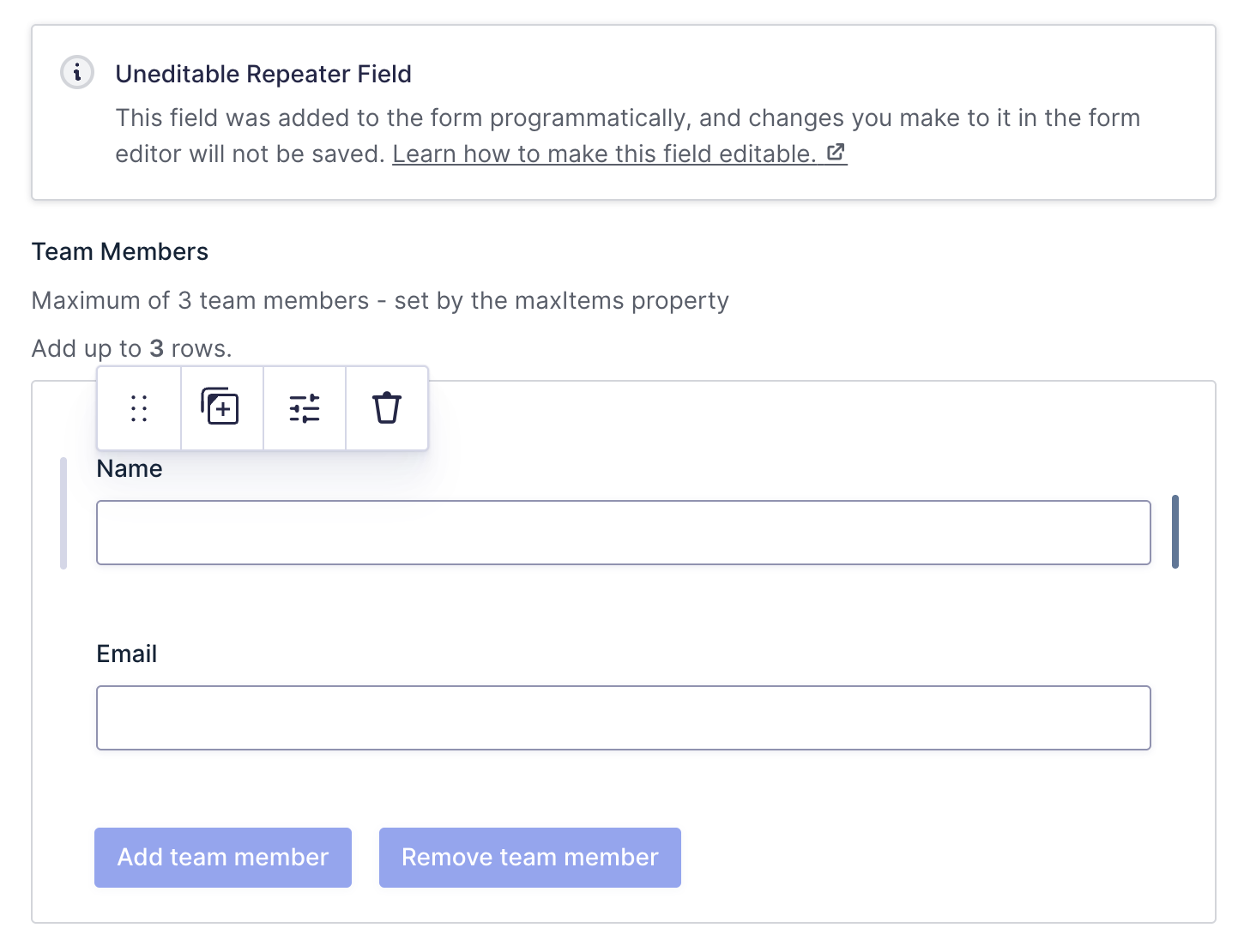
Open the form in the Form Editor and confirm that the repeater field is visible.
- Remove the
gform_form_update_metaFilter.
In your code, locate and remove thegform_form_update_metafilter. This filter is responsible for removing the repeater field from the form when it is saved. Disabling this filter prevents the field from being removed during form saving, which allows it to remain visible in the form editor.
// Remove the field before the form is saved. Adjust your form ID
add_filter( 'gform_form_update_meta_1123', 'remove_my_field', 10, 3 );
function remove_my_field( $form_meta, $form_id, $meta_name ) {

    if ( $meta_name == 'display_meta' ) {
        // Remove the Repeater field: ID 1000
        $form_meta['fields'] = wp_list_filter( $form_meta['fields'], array( 'id' => 1000 ), 'NOT' );
    }

    return $form_meta;
}
- Save the Form and Refresh the Editor.
Save the form in the form editor. Upon refreshing the form editor, you should now see two copies of the repeater field: the one you just saved and the one added programmatically.
- Remove the
gform_form_post_get_metaFilter
Next, remove thegform_form_post_get_metafilter from your code. This filter adds the repeater field to the form during its creation. Disabling it ensures that the field is not added again, leaving only the one saved in the form editor. - Refresh to confirm the field is editable.
Refresh the form editor. Click on the Repeater field. You should now only see one copy of the repeater field, and it should be fully editable within the form editor.