

Note: The built-in reCAPTCHA v2 integration in Gravity Forms Core is deprecated. Refer to the reCAPTCHA Add-On Settings Reference for setup and configuration.
Overview
reCAPTCHA v2 settings, along with the newer reCAPTCHA v3 functionality, are now available through the dedicated Gravity Forms reCAPTCHA Add-On. What you’ll see under Gravity Forms Settings depends on whether a reCAPTCHA v2 key pair was already configured on your site before this change.
If You Already Have reCAPTCHA Keys Configured
If a reCAPTCHA v2 site key and secret key were configured before this change, and the current user has the capability to view Add-On settings, a reCAPTCHA tab still appears under Gravity Forms Settings.
The tab shows your existing site key, secret key, and Type selection (Checkbox or Invisible) for reference only. These fields are disabled and cannot be edited, and the Save Settings button no longer appears.
Below your existing keys, an action button prompts you to move to the reCAPTCHA Add-On:
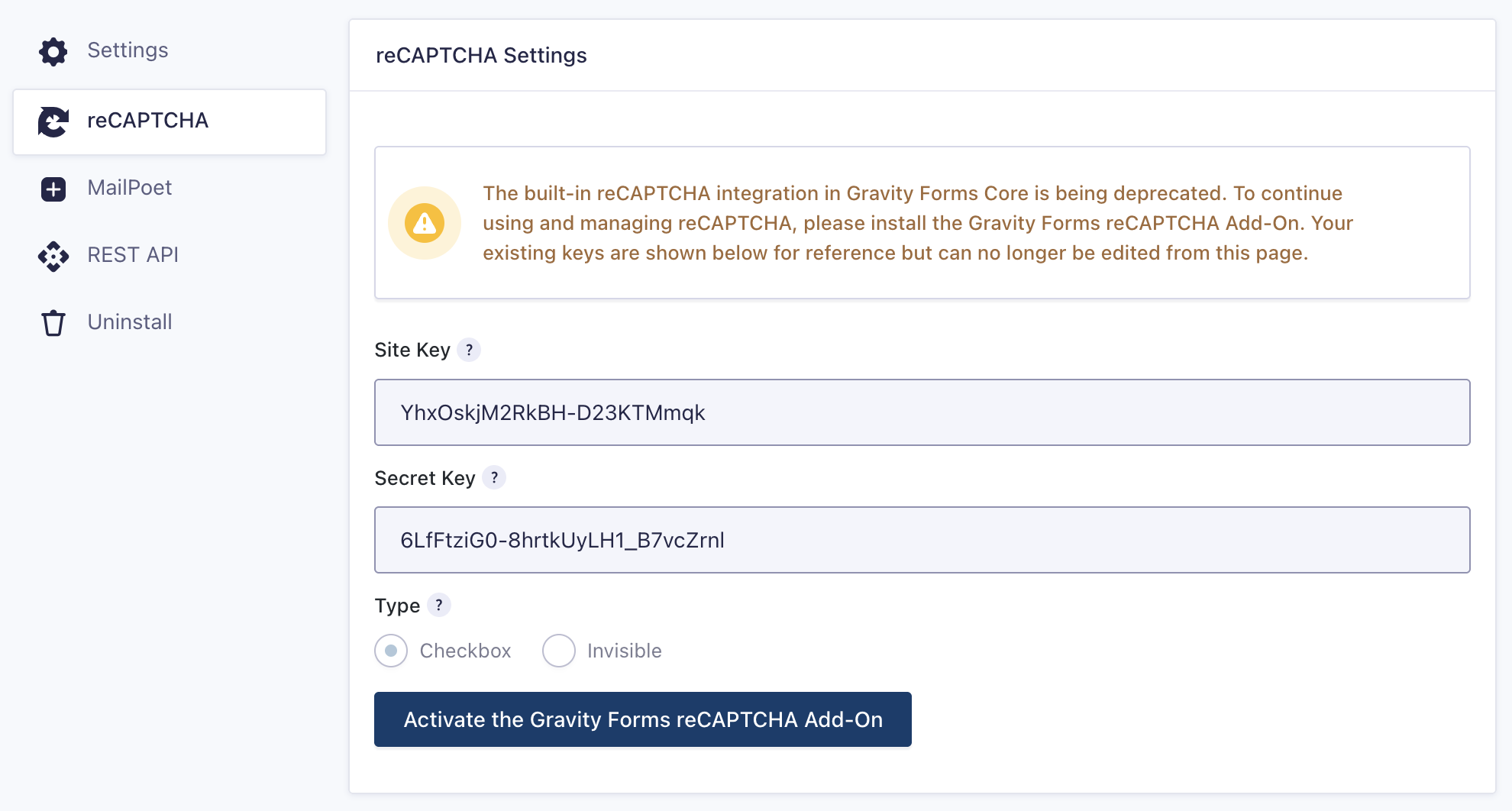
Clicking the button installs and/or activates the Add-On, which then automatically uses your existing key pair.
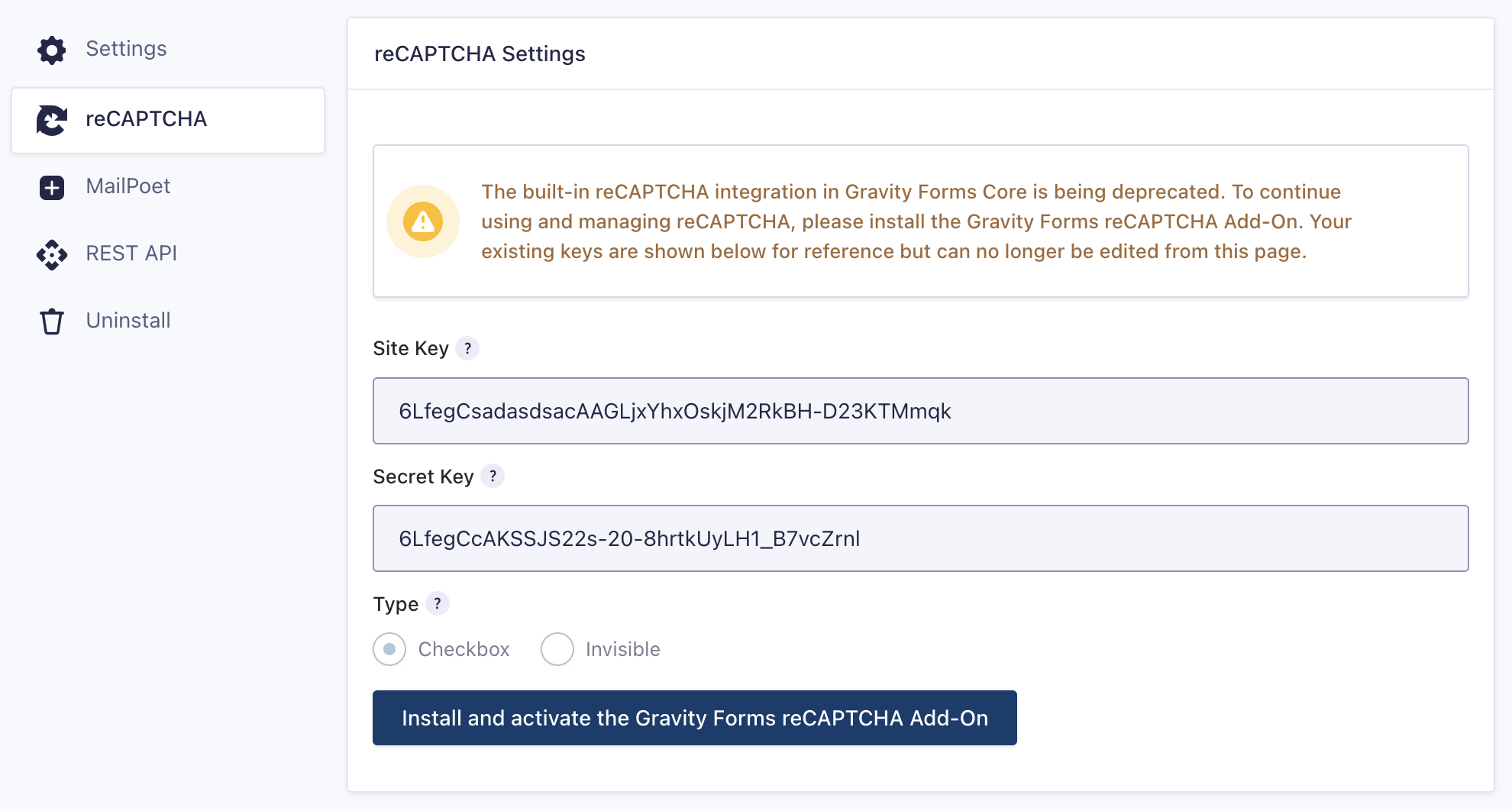
If the Install/Activate button doesn’t appear, your user account doesn’t have permission to install or activate plugins. Contact your site administrator to have the Add-On installed and activated.
If You Don’t Have reCAPTCHA Keys Configured
If no reCAPTCHA v2 key pair was previously configured on your site, the reCAPTCHA tab does not appear under Gravity Forms Settings at all. Set up reCAPTCHA directly through the reCAPTCHA Add-On; there is no separate setup path through Core.
CAPTCHA Field in the Form Editor
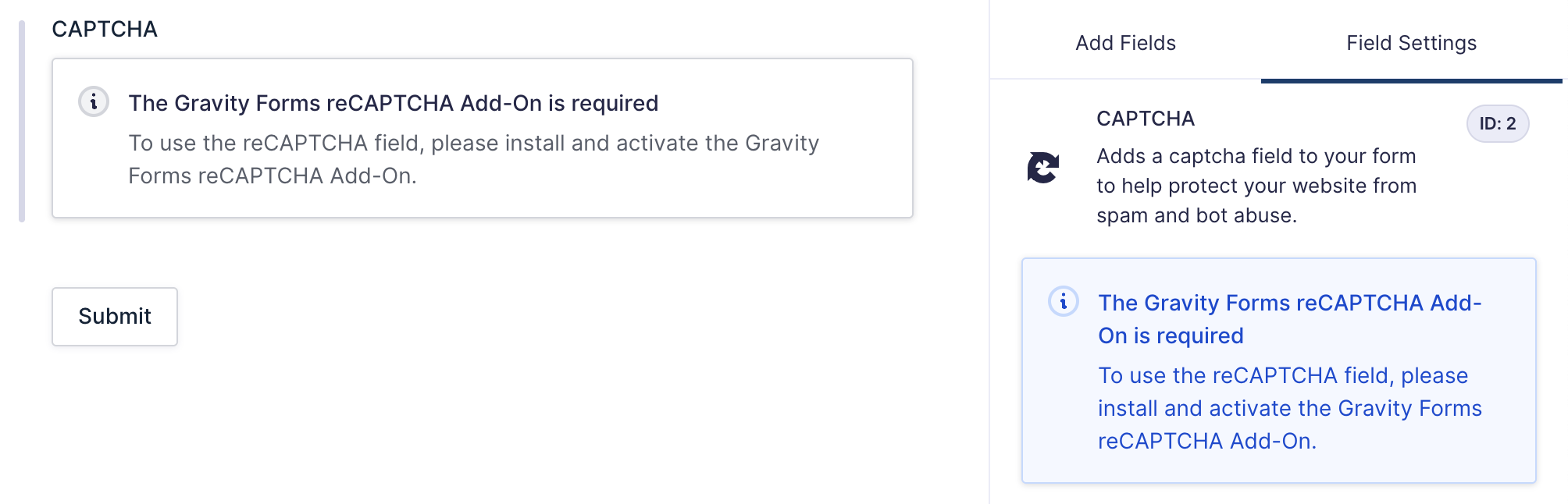
When adding or editing a CAPTCHA field in the form editor without the reCAPTCHA Add-On active, the field displays a notice that the built-in reCAPTCHA field is being deprecated, and prompts you to install and configure the reCAPTCHA Add-On. This applies regardless of which scenario above matches your site.
Frequently Asked Questions
Why don’t I see the reCAPTCHA tab anymore?
The tab appears only if a reCAPTCHA v2 key pair has already been configured on your site and you have the capability to view Add-On settings. If no keys were previously set up, use the reCAPTCHA Add-On instead.
Can I still edit my existing keys here?
No. The site key, secret key, and Type fields are shown for reference only and are disabled. Install and activate the reCAPTCHA Add-On to manage your configuration going forward.
What happens to my keys when I install the Add-On?
Your existing key pair is automatically carried over. You don’t need to generate new keys or re-enter them.
Why don’t I see the Install/Activate button?
This means your user account doesn’t have permission to install or activate plugins. Contact your site administrator to have the Add-On installed and activated.
What happens to the CAPTCHA field in my forms?
Without the reCAPTCHA Add-On active, the CAPTCHA field in the form editor displays a notice that the built-in field is deprecated and prompts you to install and configure the Add-On.