

Overview
Post Payment Actions are checkboxes in payment feeds that hold another add-on’s feed until a payment is received. Payment status conditional logic does the same job from the feed itself and can also respond to other payment statuses, such as Failed or Refunded.
We recommend moving any feed that relies on Post Payment Actions to payment status conditional logic. This article explains the difference between the two and walks you through the change.
Note: Post Payment Actions checkboxes are still shown in the payment feed settings and continue to work, but we recommend using payment status conditional logic to control when your feeds run.
Why Use Feed Conditional Logic
Both settings stop a feed from running before a payment is complete. They differ in where you set them and in what they can react to.
| Post Payment Actions | Payment status conditional logic | |
|---|---|---|
| Where it is placed | In the payment feed, as a checkbox for each add-on that has a feed on the form. | On the feed you want to control, alongside its other conditions. |
| What it reacts to | A successful payment only. | Any status the gateway records, such as Paid, Failed, or Refunded. |
| A different action for each outcome | Not available. | Create a separate feed for each status you need to handle. |
Before You Start
- The form needs an active payment feed from an add-on that supports Post Payment Actions: Stripe, PayPal Checkout, Mollie, or Square. Payment Status appears only in the conditional logic field list for other feeds when the form has an active payment feed.
- Your payment add-on must be fully set up, because it is what updates the entry’s payment status. See the documentation for your payment add-on: Stripe, PayPal Checkout, Mollie, and Square.
- Make the change on a staging site first, or at a time when the form is not receiving submissions.
Migrate a Feed
Follow these steps for each add-on feed that is currently held by a Post Payment Action.
Check Which Feeds Use Post Payment Actions
- Open the form, go to Settings, and select your payment add-on, for example, Stripe.
- Open the payment feed and scroll to the Post Payment Actions section.
- Note each add-on that is checked. Leave the checkboxes as they are for now.

Add a Payment Status Condition to the Feed
- In the form’s Settings, select the add-on whose feed you want to change, for example, User Registration, and open the feed.
- In the Conditional Logic section, enable conditional logic.
- Choose Payment Status, then the status that should trigger the feed. See Which Status to Use below.
- If the feed already has conditions, keep them; add Payment Status as an additional rule, and set the feed to process when All rules match.
- Save the feed.
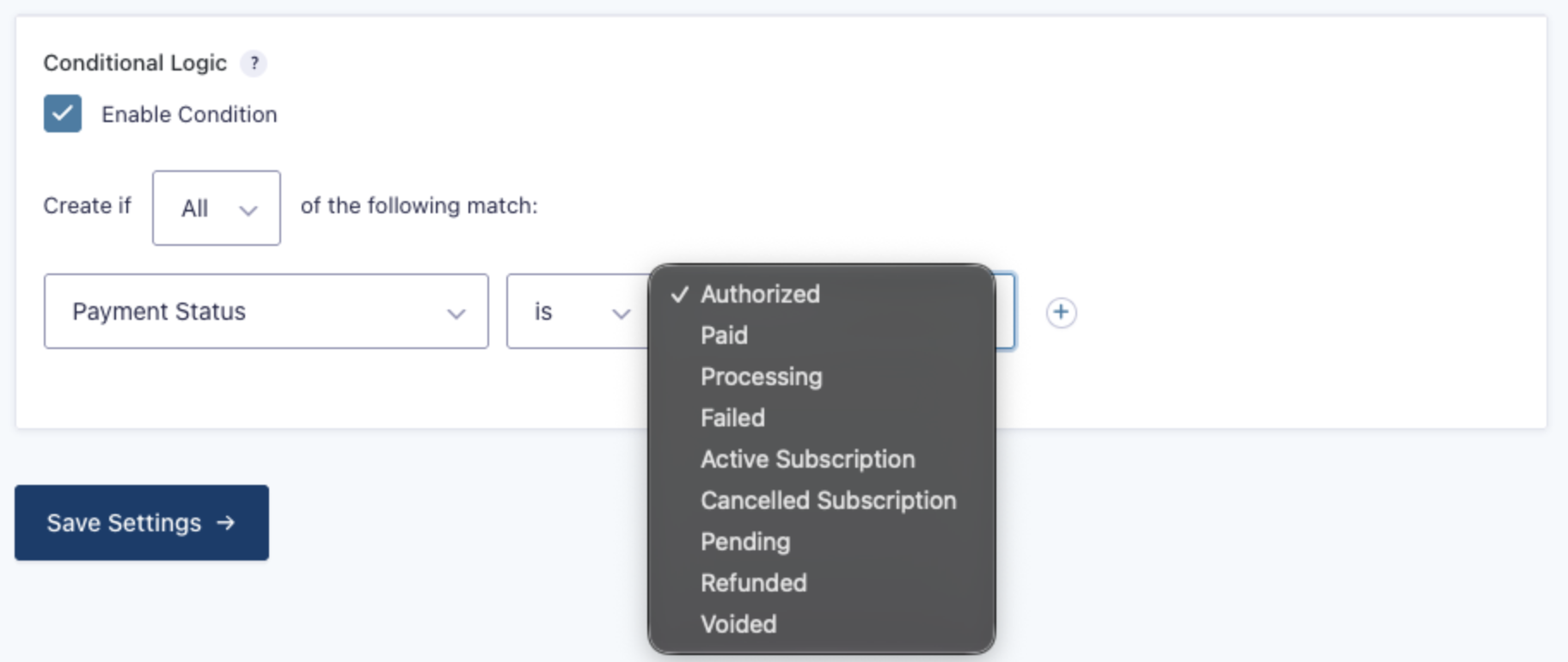
Note: Conditional logic cannot combine All (AND) and Any (OR) rules in the same feed. If the feed’s existing rules use Any, adding Payment Status to them would let the feed run as soon as one of the other rules matches, before the payment is complete. In that case, create a separate feed for each existing rule, each set to All with the Payment Status rule added. If more than one of those feeds can match the same entry, the action runs once for each matching feed.
Turn Off the Post Payment Action
- Return to your payment add-on in the form’s Settings and open the payment feed.
- In the Post Payment Actions section, uncheck the add-on you just updated.
- Save the payment feed.
Add the condition before you uncheck the Post Payment Action. That way, the feed is never left running on every submission, regardless of the payment outcome. When a feed uses payment status conditional logic, leave its Post Payment Action unchecked.
Test the Form
- Submit the form with a successful test payment and confirm the feed ran, for example, that the user was created.
- Submit the form again with a test payment that fails, and confirm the feed did not run. Your gateway’s testing documentation lists the details to use, for example, Stripe’s test cards.
- Open each entry and check that its Payment Status is the one you expect.
See Debugging Feed Issues if a feed does not run. If you use Stripe, see Verifying Your Stripe Integration for more on testing.
Which Status to Use
To get the same result as a Post Payment Action, choose the status that matches the transaction type of your payment feed.
| Payment feed transaction type | Condition to set on the other feed |
|---|---|
| Products and Services | Payment Status is Paid |
| Subscription | Payment Status is Active Subscription |
You can also target other statuses, such as Failed, Processing, or Refunded. See Process a feed based on payment status for the full list. Not every payment gateway uses every status.
Note: If the subscription has a trial, a Post Payment Action waits until the first charge is processed at the end of the trial. A feed that uses Active Subscription may run at a different time. Test a trial subscription before you turn off the Post Payment Action, and confirm that the feed runs when you expect it to.
Examples
Create a user only when the payment is paid
A membership form has a payment feed for a one-time payment and a User Registration feed. Previously, the User Registration checkbox in the payment feed’s Post Payment Actions held the registration until payment was received.
- Open the User Registration feed and enable conditional logic.
- Set the rule to Payment Status is Paid and save the feed.
- Open the payment feed, uncheck the User Registration option under Post Payment Actions, and save.
The user account is now created only once the entry’s payment status changes to Paid.
Send a Slack message when a payment fails
Post Payment Actions only run feeds after a successful payment. With conditional logic, you can add a feed for the opposite case. On the same form, create a Slack feed that posts to your sales channel, enable conditional logic, and set the rule to Payment Status is Failed. Your team is notified of failed payments, and the User Registration feed above still runs only for paid entries.
How Feeds Are Processed
A feed with a payment status condition does not run when the form is submitted if the entry’s status does not match yet. When the payment add-on updates the entry’s payment status, Gravity Forms checks the form’s feeds again and processes those whose conditions now match. A feed that has already run for an entry is not processed again.
A payment status condition only matches entries that have a payment. If your payment feed has its own conditional logic and does not run for an entry, that entry never gets a payment status, so a feed that requires Payment Status is Paid does not run for it.