

Introduction
This article covers issues that can occur when attempting to connect the Gravity Forms HubSpot Add-On to your HubSpot account, and how to resolve them.
Connect Button Not Displayed
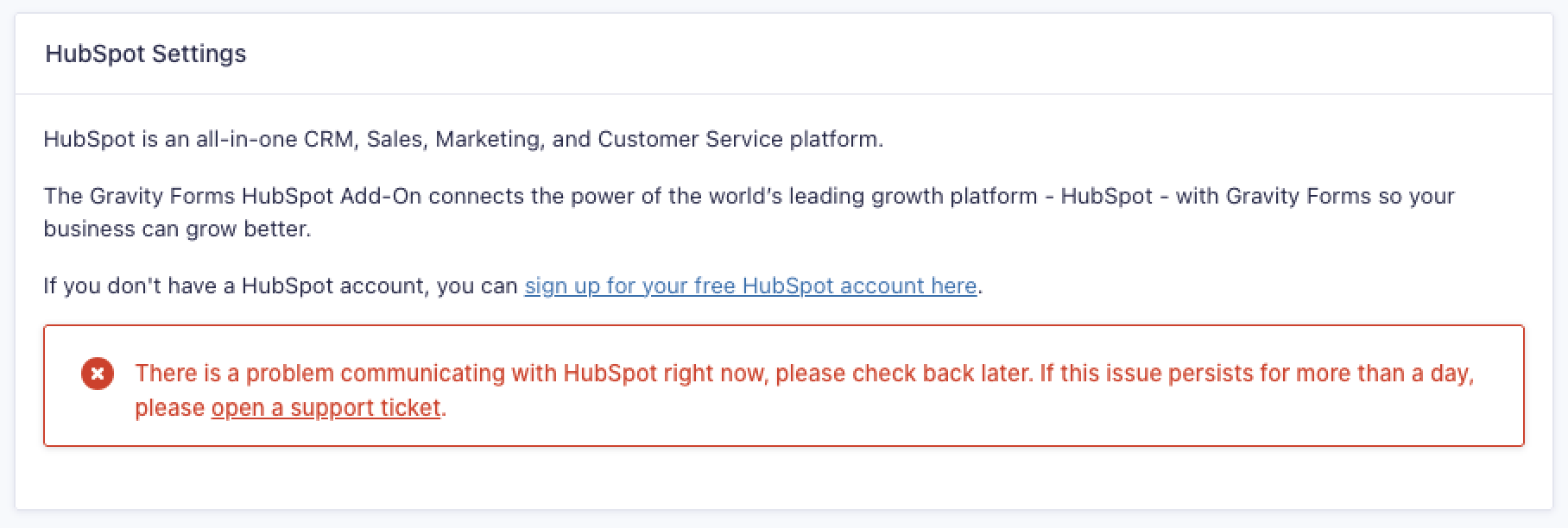
In some cases, the connect button may not appear on the Forms > Settings > HubSpot page, preventing you from authenticating the add-on.
Cause
This occurs when the HubSpot API access token fails to refresh. The HubSpot access tokens are only valid for 30 minutes and require a refresh token to obtain a new one. If HubSpot does not issue a refresh token alongside the access token, which can occur due to a temporary issue on HubSpot’s end, the add-on loses the ability to automatically refresh authentication.
When this happens, the following message will appear in the Gravity Forms HubSpot Add-On logs:
GF_HubSpot::initialize_api(): API access token failed to be refreshed; Refresh token must be provided.
Resolution
To restore the connection, you will need to force the connect button to appear and reconnect the add-on to obtain new access and refresh tokens.
- Navigate to Forms > Settings > HubSpot in your WordPress admin.
- Append
&gf_display_connect_button=1to the end of the page URL and press Enter.

- The connect button will now be displayed. Click it to reconnect the add-on
Once reconnected, the add-on will have valid access and refresh tokens, restoring normal functionality.