Overview
Multi-page forms help break long forms into smaller, manageable sections. Gravity Forms includes built-in tools to display a user’s progress, including a progress bar and step indicators when adding the Page Break field to a form. These visual cues help users understand their current position in the process, thereby enhancing overall usability.
This article explains how to enable the Progress Bar or Steps indicator in a multi-page form, how to control navigation, and how to customize the display.
Requirements
A form containing a Page Break field (multi-page forms).
Enabling Multi-Page Navigation
- Go to Forms → Open your form.
- Add one or more Page fields from Standard Fields.
The first Page field becomes Start Paging. - Select the Start Paging field.
- Enable your preferred Progress Indicator option.
The Progress Indicator indicates to users their current position in the form. Refer to the Page Break Common Settings for more information about each setting.
Progress Indicator Options
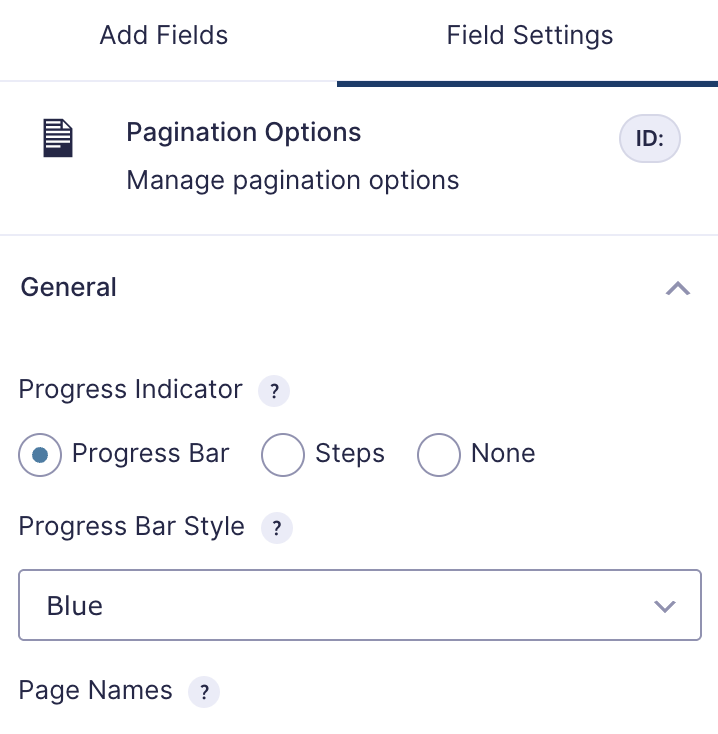
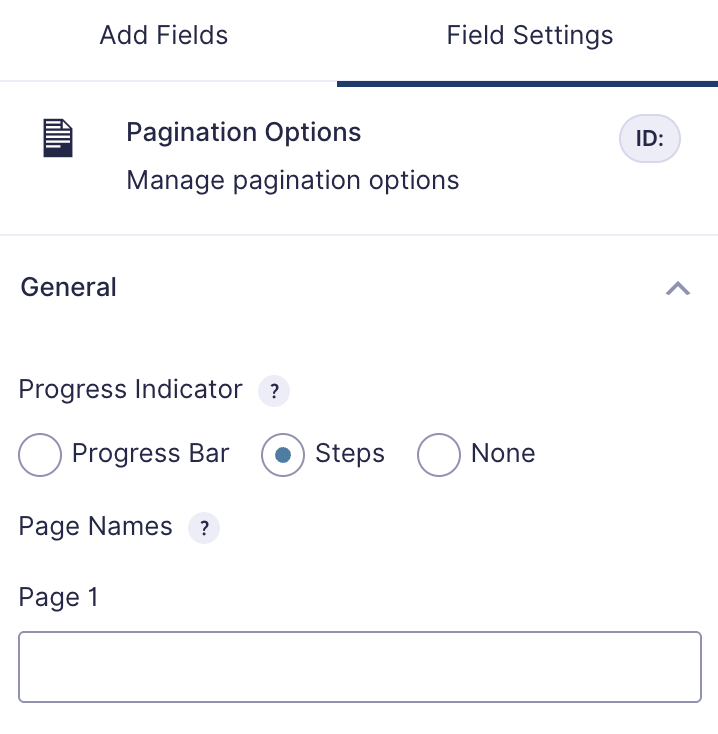
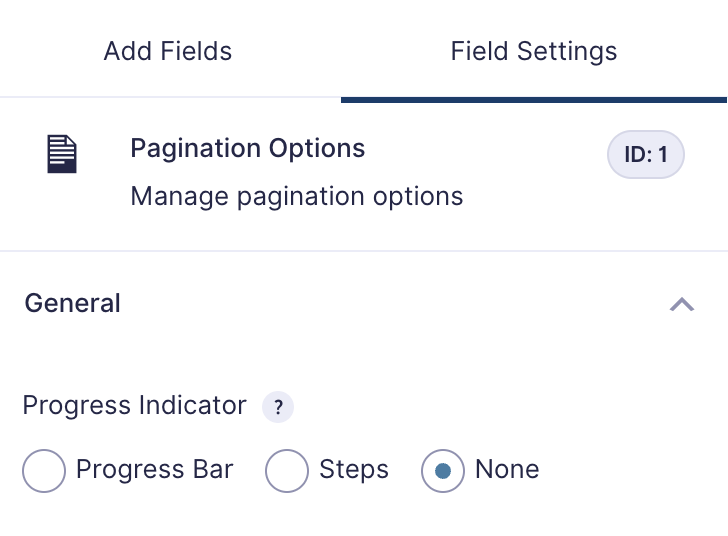
Click on the Start Paging element within your form editor screen, and then choose the Field Settings tab in the right-hand panel. The Progress Indicator setting is available there.

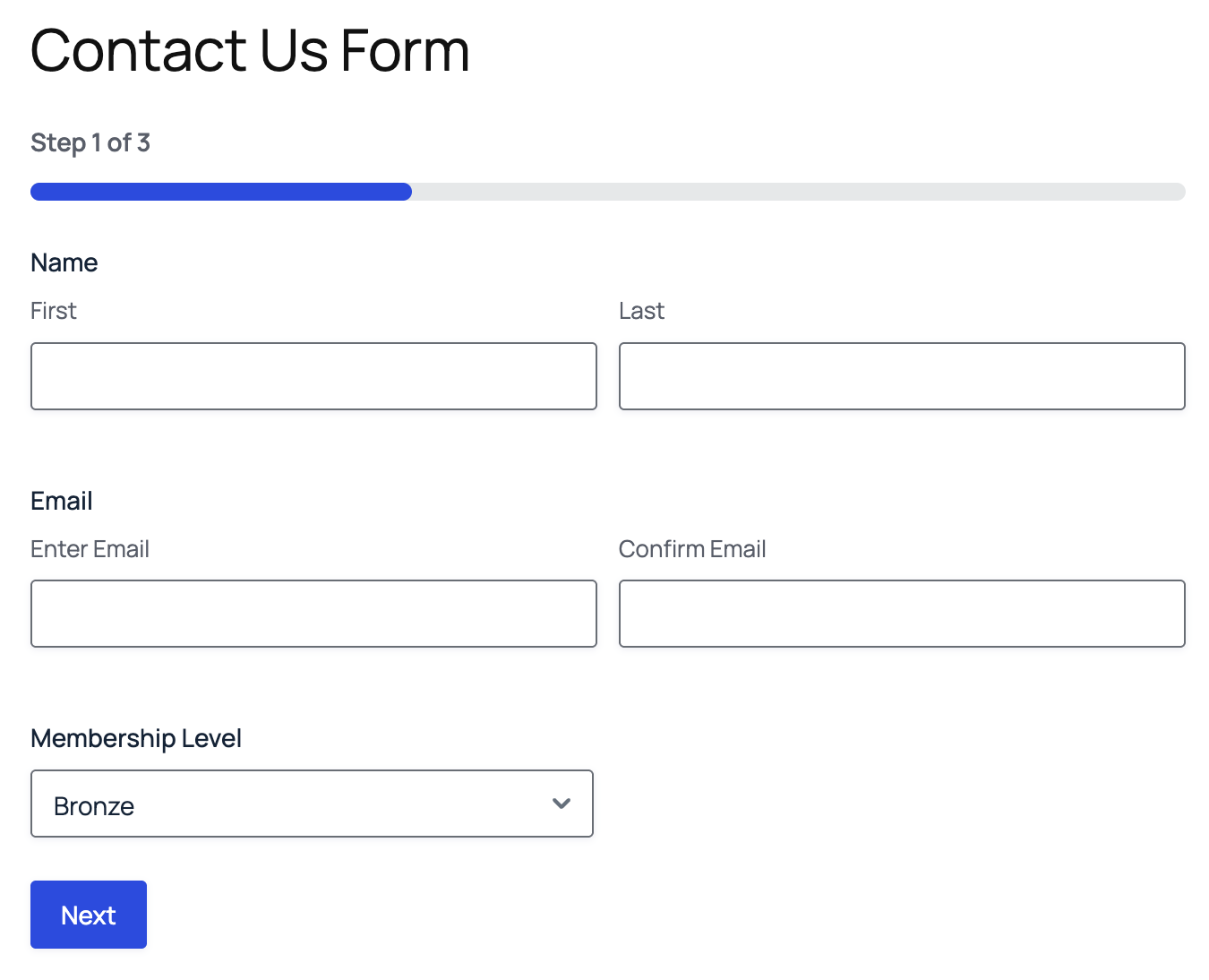
Progress Bar
Displays a horizontal bar that fills as the user advances through form pages.
Steps
Displays labeled steps for each page in the form. This option is useful when pages represent clear, named sections.
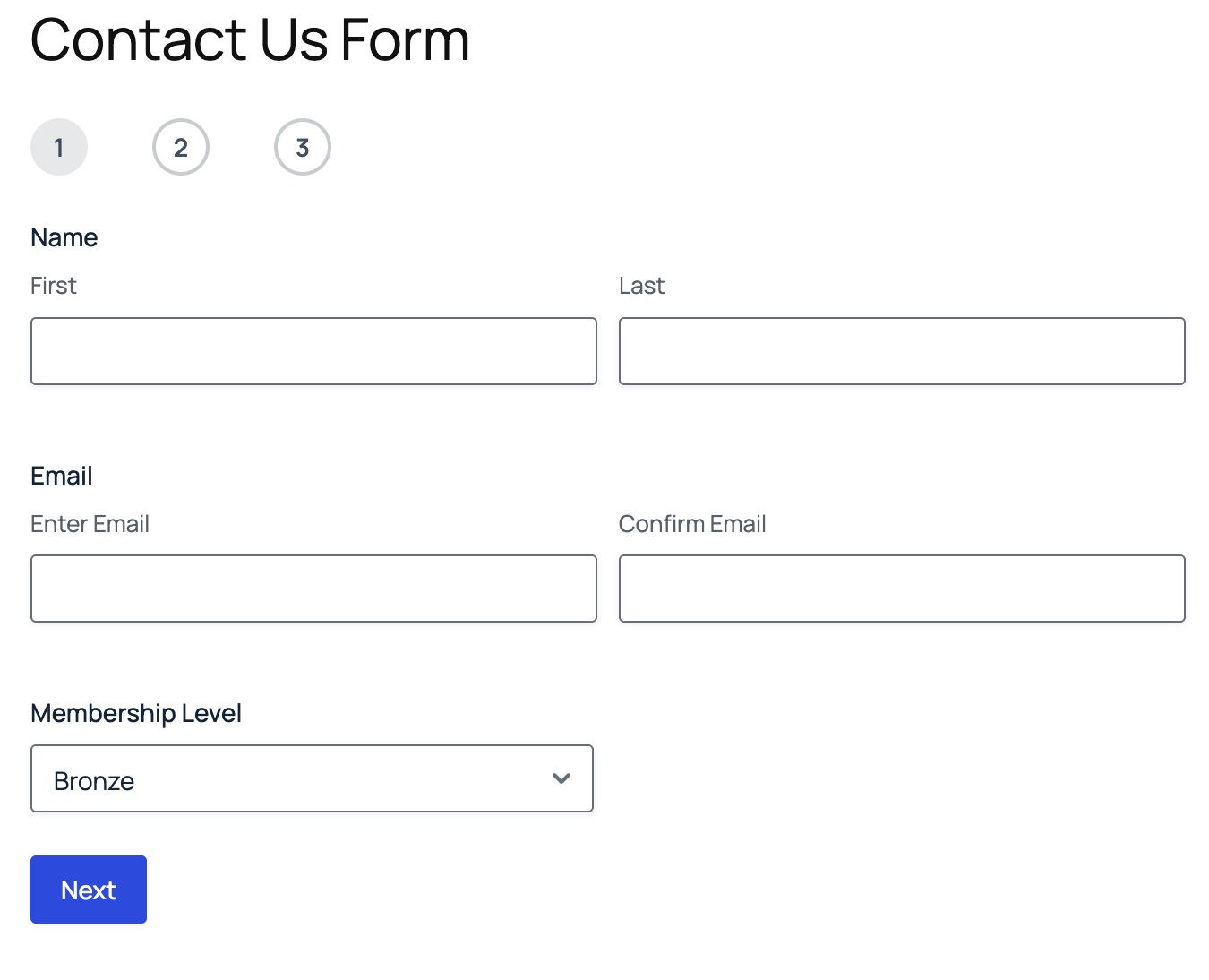
None
When the None option is selected, no progress indicator will be shown in the form.
Navigation Controls
Navigation controls define how users move between pages in a multi-page form. Conditional logic allows you to refine the experience.
Next Button
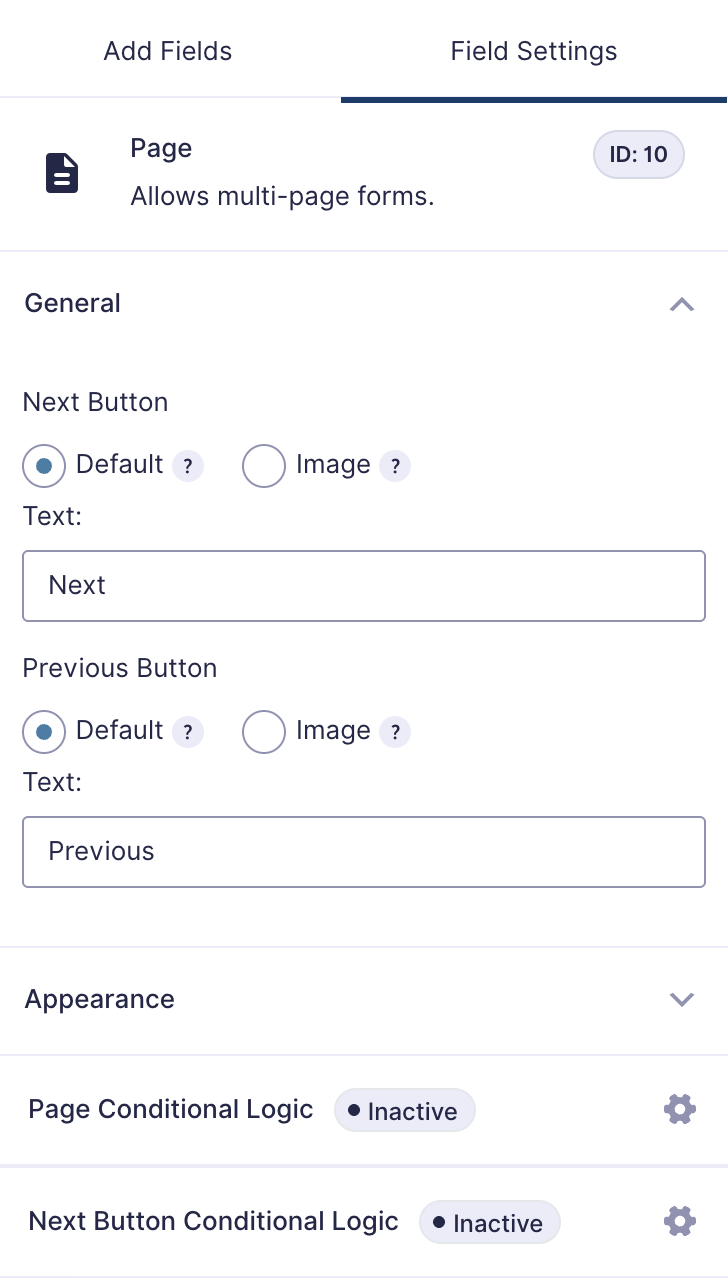
The Next button is used to advance users to the next page of the form. Every multi-page form relies on the Next button to guide users through the sequence of pages. You can update the label to match the tone of the form (e.g., “Continue”, “Next Step”, “Proceed”) or use a custom image to align with your site’s design.
Previous Button
The Previous button allows users to navigate back to an earlier page. The Previous button is used when users need to review or adjust their answers before submitting, such as in an application, order form, or multi-step registration.
Conditional Logic
Gravity Forms offers two distinct methods for controlling user navigation through multi-page forms: Page Conditional Logic and Next Button Conditional Logic. While both influence navigation, they serve different purposes.
Page Conditional Logic
What it does
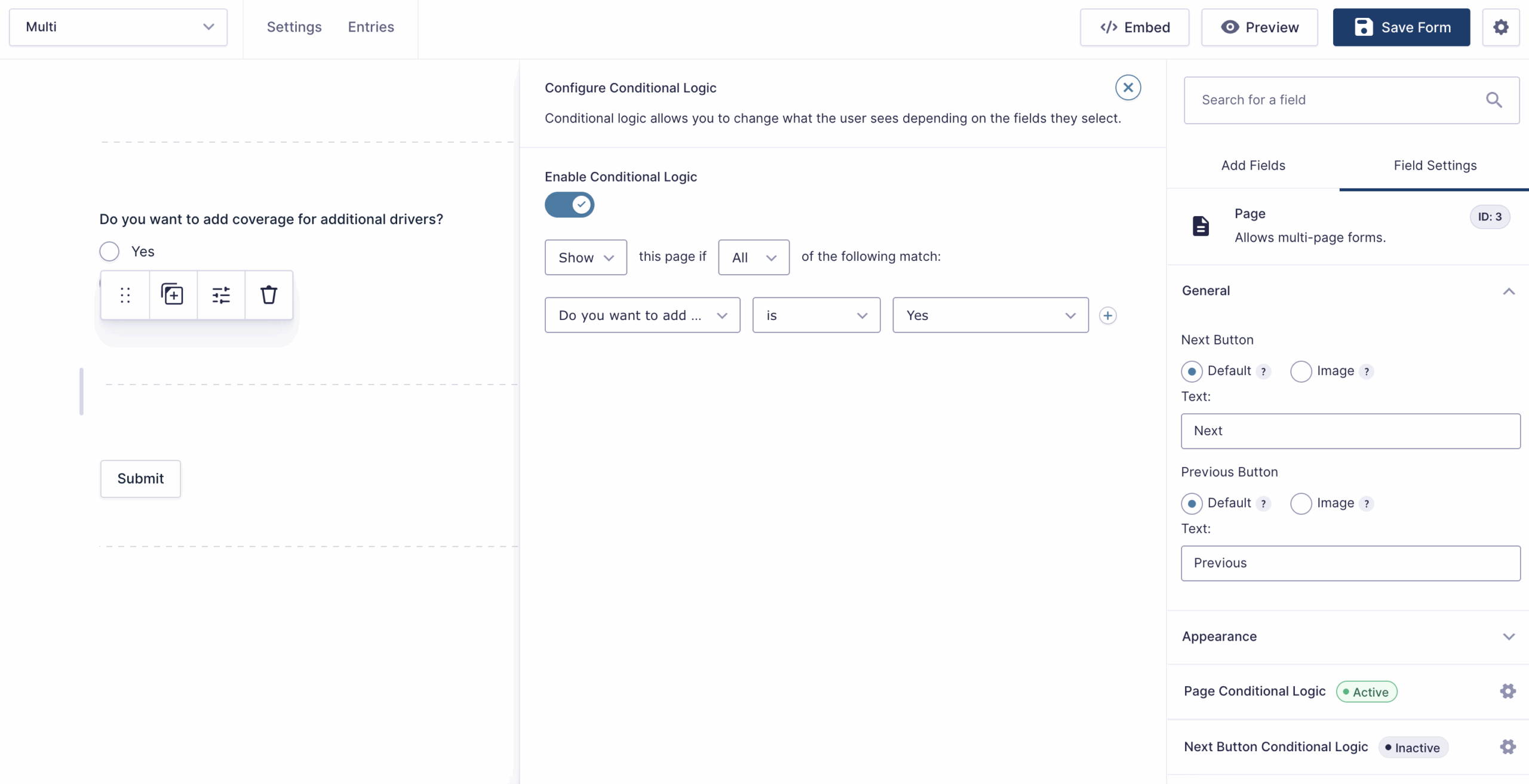
Determines whether an entire page should be shown or skipped based on the user’s earlier answers.
When to use it
Use Page Conditional Logic when the content of a full page is only relevant for a subset of users.
Example
A car insurance application asks:
“Do you want to add coverage for additional drivers?“
Yes → Show a page that collects information about each additional driver.
No → Automatically skip that page and move on.
Next Button Conditional Logic
What it does
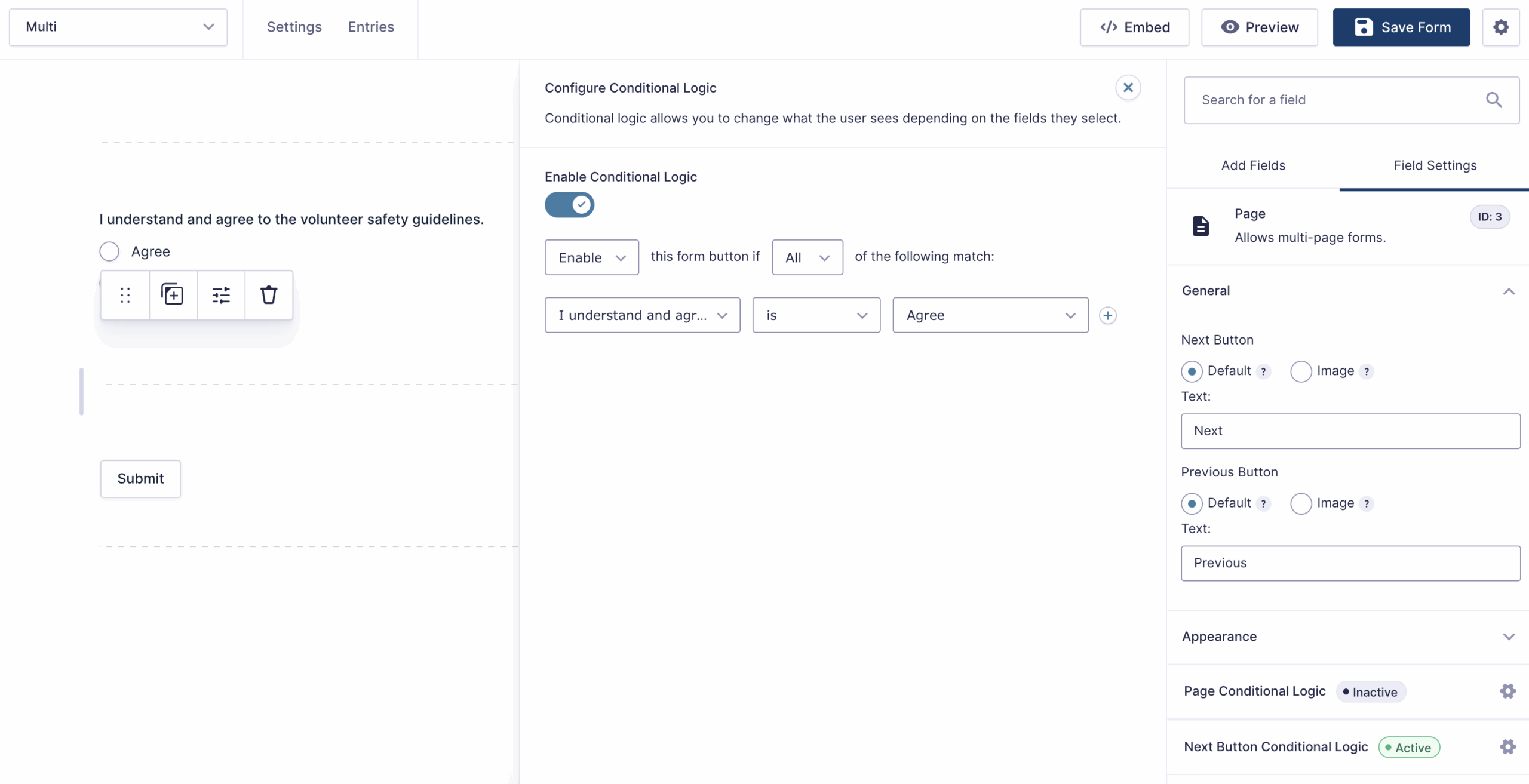
Controls whether the Next button is displayed or enabled. If the conditions aren’t met, the user cannot proceed to the next page.
When to use it
Use this when the user must meet a requirement before advancing without hiding any pages.
Example
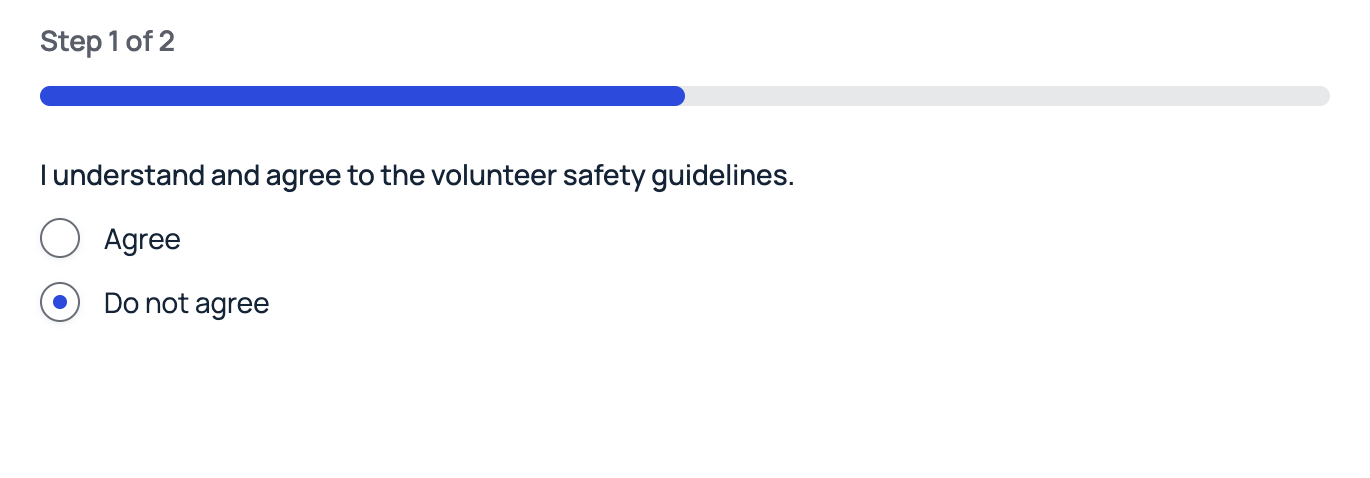
A volunteer signup form includes required agreement fields:
“I understand and agree to the volunteer safety guidelines.“
If the user selects Agree, the Next button appears/enables.
If they select Do not agree, they cannot proceed to the next page.

Displaying Completion Text
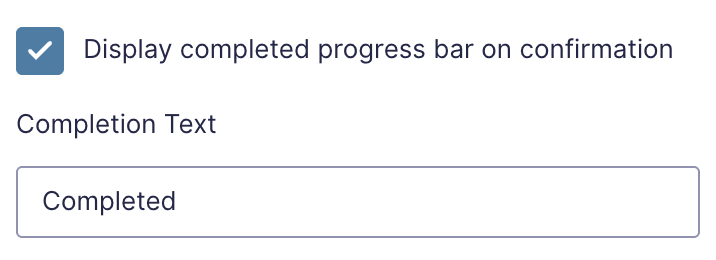
When using the Progress Bar, you may enter Completion Text to display once the user reaches the final page or the confirmation message. This text replaces the standard progress display at 100%.