Introduction
Connecting WooCommerce product data to Gravity Forms allows you to fill form fields with product details, such as titles and featured images.
This article demonstrates using a custom snippet to retrieve WooCommerce products and populate a Gravity Forms Image Choice field.
Dynamically Populate a ‘Select One’ Image Choice Field
This example demonstrates how to populate a Gravity Forms Image Choice field configured as Select One (radio-style selection) with WooCommerce products, using each product’s featured image as the choice image.
add_filter( 'gform_pre_render_123', 'populate_image_choices' );
add_filter( 'gform_pre_validation_123', 'populate_image_choices' );
add_filter( 'gform_admin_pre_render_123', 'populate_image_choices' );
add_filter( 'gform_pre_submission_filter_123', 'populate_image_choices' );
/**
 * Populates a Select One Image Choice field with WooCommerce products.
 *
 * @param array $form The current form.
 *
 * @return array
 */
function populate_image_choices( $form ) {
	$field_id = 1; // Replace with your Image Choice field id.

	$posts = get_posts(
		array(
			'post_type'      => 'product',
			'post_status'    => 'publish',
			'posts_per_page' => -1,
		)
	);

	$choices = array();

	foreach ( $posts as $post ) {
		$product = wc_get_product( $post->ID );
		if ( ! $product ) {
			continue;
		}

		$image_id  = (int) $product->get_image_id();
		$image_url = $image_id ? wp_get_attachment_url( $image_id ) : '';
		if ( ! $image_url ) {
			continue;
		}

		$choices[] = array(
			'text'          => $product->get_name(),
			'value'         => $product->get_name(),
			'image'         => $image_url,
			'file_url'      => $image_url,
			'attachment_id' => $image_id,
		);
	}

	foreach ( $form['fields'] as &$field ) {
		if ( (int) $field->id === $field_id ) {
			$field->choices = $choices;
			break;
		}
	}

	return $form;
}

Dynamically Populate a ‘Select One’ Image Choice Field with Name and Price
This example demonstrates how to populate a Gravity Forms Image Choice field with WooCommerce products, displaying each product’s featured image, name, and formatted price.
add_filter( 'gform_pre_render_123', 'populate_image_choices_with_prices' );
add_filter( 'gform_pre_validation_123', 'populate_image_choices_with_prices' );
add_filter( 'gform_admin_pre_render_123', 'populate_image_choices_with_prices' );
add_filter( 'gform_pre_submission_filter_123', 'populate_image_choices_with_prices' );
/**
 * Populates a Select One Image Choice field with WooCommerce products, including the formatted price in each choice label.
 *
 * @param array $form The current form.
 *
 * @return array
 */
function populate_image_choices_with_prices( $form ) {
	$field_id = 1; // Replace with your Image Choice field id.

	$posts = get_posts(
		array(
			'post_type'      => 'product',
			'post_status'    => 'publish',
			'posts_per_page' => 6,
		)
	);

	$choices = array();

	foreach ( $posts as $post ) {
		$product = wc_get_product( $post->ID );
		if ( ! $product ) {
			continue;
		}

		$image_id  = (int) $product->get_image_id();
		$image_url = $image_id ? wp_get_attachment_url( $image_id ) : '';
		if ( ! $image_url ) {
			continue;
		}

		$price           = wc_format_decimal( $product->get_price(), 2 );
		$name_with_price = $product->get_name() . ' (' . wc_price( $price ) . ')';

		$choices[] = array(
			'text'          => $name_with_price,
			'value'         => (string) $product->get_id(),
			'image'         => $image_url,
			'file_url'      => $image_url,
			'attachment_id' => $image_id,
		);
	}

	foreach ( $form['fields'] as &$field ) {
		if ( (int) $field->id === $field_id ) {
			$field->choices = $choices;
			break;
		}
	}

	return $form;
}

Dynamically Populate a ‘Select Multiple’ Image Choice Field
This example populates a Gravity Forms Image Choice field configured as Select Multiple with WooCommerce products. Multi-select fields need both choices and inputs populated, with a matching key on each pair so Gravity Forms can tie them together.
add_filter( 'gform_pre_render_123', 'populate_image_choices_by_class' );
add_filter( 'gform_pre_validation_123', 'populate_image_choices_by_class' );
add_filter( 'gform_admin_pre_render_123', 'populate_image_choices_by_class' );
add_filter( 'gform_pre_submission_filter_123', 'populate_image_choices_by_class' );
/**
 * Populates any Image Choice field with the "wc_products" CSS class with WooCommerce products.
 *
 * @param array $form The current form.
 *
 * @return array
 */
function populate_image_choices_by_class( $form ) {
	foreach ( $form['fields'] as &$field ) {
		if ( false === strpos( $field->cssClass, 'wc_products' ) ) {
			continue;
		}

		$posts = get_posts(
			array(
				'post_type'      => 'product',
				'post_status'    => 'publish',
				'posts_per_page' => -1,
			)
		);

		$choices = array();
		$inputs  = array();
		$index   = 1;

		foreach ( $posts as $post ) {
			$product = wc_get_product( $post->ID );
			if ( ! $product ) {
				continue;
			}

			$image_id  = (int) $product->get_image_id();
			$image_url = $image_id ? wp_get_attachment_url( $image_id ) : '';
			if ( ! $image_url ) {
				continue;
			}

			// Skip input IDs that are multiples of 10 (reserved by Gravity Forms).
			if ( 0 === $index % 10 ) {
				$index++;
			}

			$name = $product->get_name();
			$key  = wp_generate_password( 14, false, false );

			$choices[] = array(
				'text'          => $name,
				'value'         => $name,
				'image'         => $image_url,
				'file_url'      => $image_url,
				'attachment_id' => $image_id,
				'key'           => $key,
			);

			$inputs[] = array(
				'id'    => $field->id . '.' . $index,
				'label' => $name,
				'name'  => '',
				'key'   => $key,
			);

			$index++;
		}

		$field->choices = $choices;
		$field->inputs  = $inputs;
	}

	return $form;
}
Automatically Add Selected Product to WooCommerce Cart After Form Submission
This example demonstrates how to automatically add a product selected in a Gravity Forms field to the WooCommerce cart after form submission, with an optional step to clear the cart.
/**
 * Adds the product selected in form 123 to the WooCommerce cart after submission.
 *
 * @param array $entry The current entry.
 */
add_action(
	'gform_after_submission_123',
	function ( $entry ) {
		$product_id = (int) rgar( $entry, '1' ); // Replace with your Image Choice field id.
		if ( ! $product_id ) {
			return;
		}

		$product = wc_get_product( $product_id );
		if ( ! $product ) {
			return;
		}

		WC()->cart->empty_cart(); // Optional: clear previous cart items.
		WC()->cart->add_to_cart( $product_id, 1 );

		do_action( 'woocommerce_add_to_cart', $product_id );
	}
);
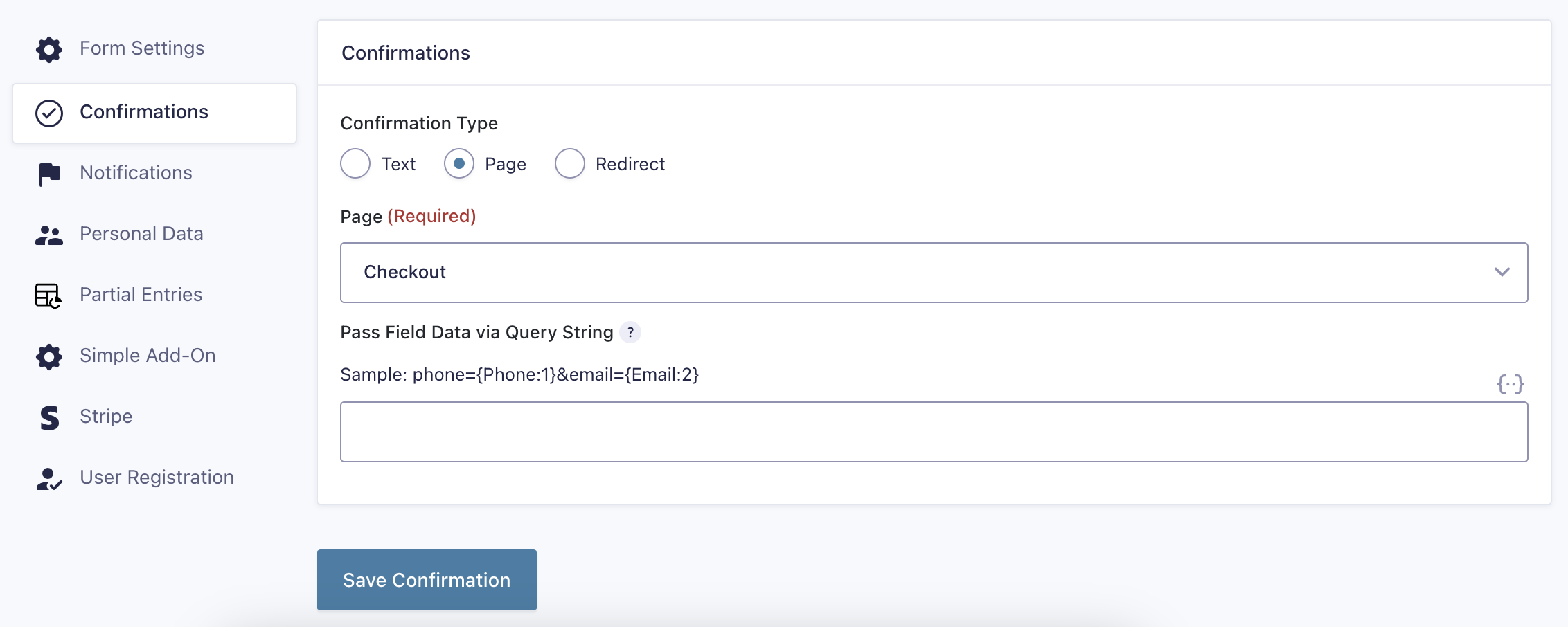
You can redirect the user to the checkout page after form submission, with a custom Confirmation page.